Create New Audience
1. Click on the “Create New Audience” button and navigate to this screen.
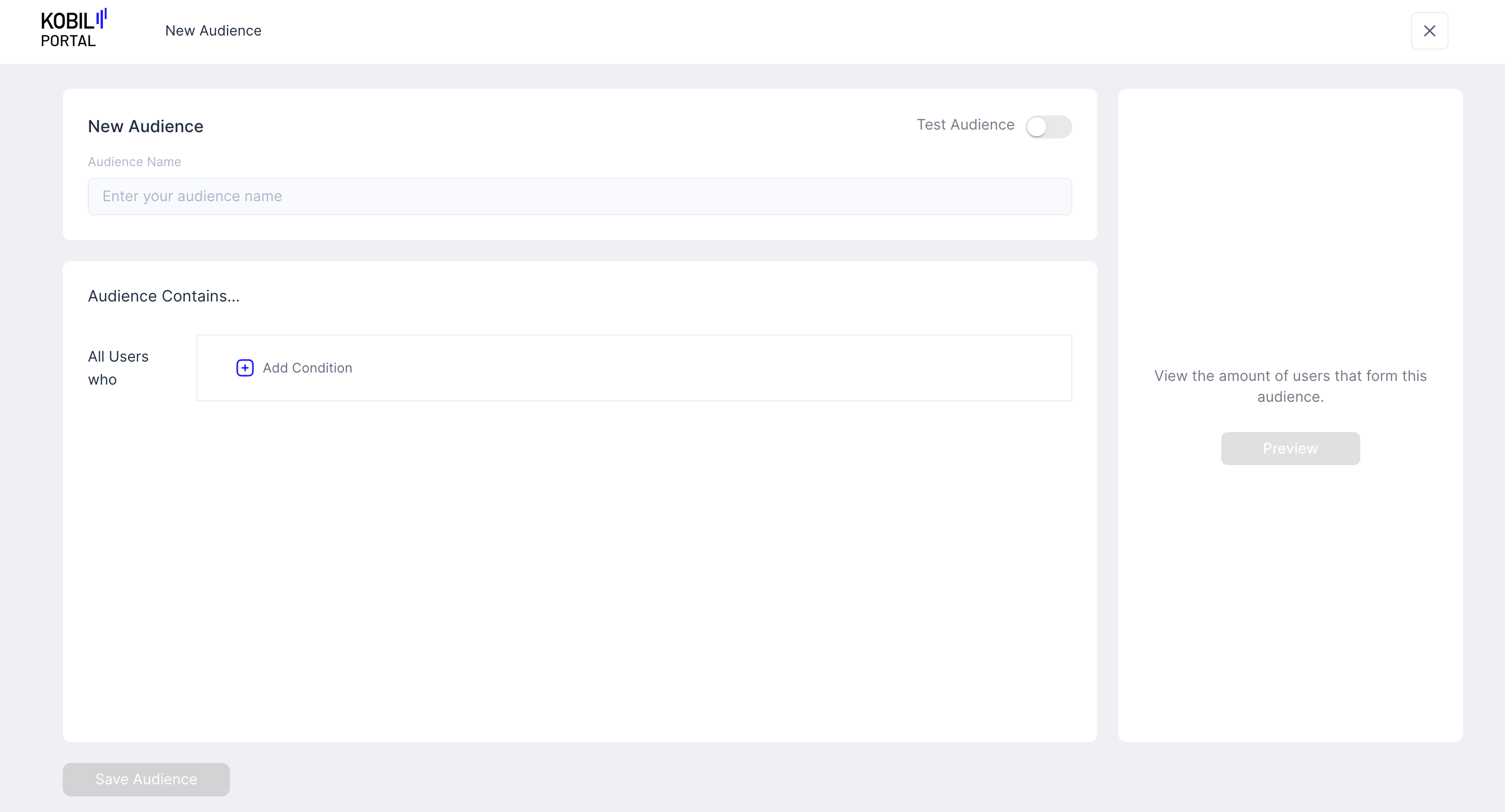
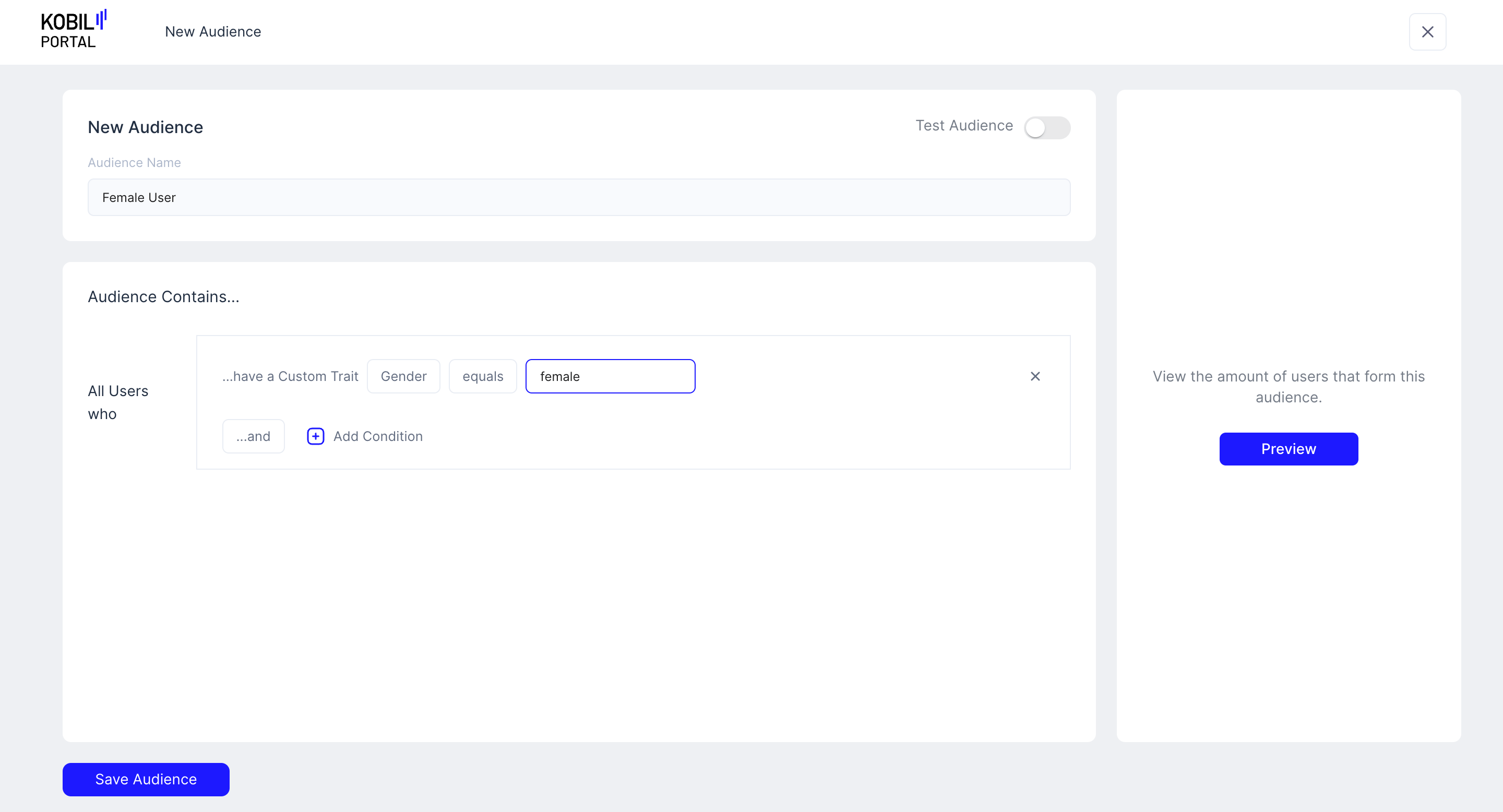
2. Enter the “Audience Name” for your new Audience. Complete the User Friendly Condition System to Query the App User. Add more condition if required. Save the Audience by click on the “Save Audience” button
info
If the Audience will be used for testing purposes, enable the “Test Audience” Toggle and follow this link for more information to Test Audiences
tip
Example of a User-Friendly Condition System:
Select Custom Trait → Gender → equals → 'female'
3. You can add the following criteria to the audience filter:
| All Users who performed an Event | Properties |
| MiniAppOpened | MiniApp Name: Filter by the name of mini app |
| ChatOpened | Service Name: Filter by the name of mini app |
| TimeSpentOnMiniApp | + MiniApp Name: Filter by the name of mini app + Time Spent in Seconds: Filter by timestamp |
| MadePayment | + Merchant Name: Filter by Merchant Name e.g. TUI Travel Agency + Payment Type: Filter by payment type e.g. Credit Card |
| UserLoggedIn | + Logged in Device: Filter by device type e.g. iphone, android + Context App Version: Filter by App Version e.g. 1.0.0 |
| All Users who are located in | Properties |
| Map Selection | Filter by selecting an area on the map |
| Address | Filter by giving address |
| All Users who have a custom trait | Properties |
| Gender | Filter based on a specific Gender from User Profiles |
| Address | Filter based on a specific address from User Profiles |