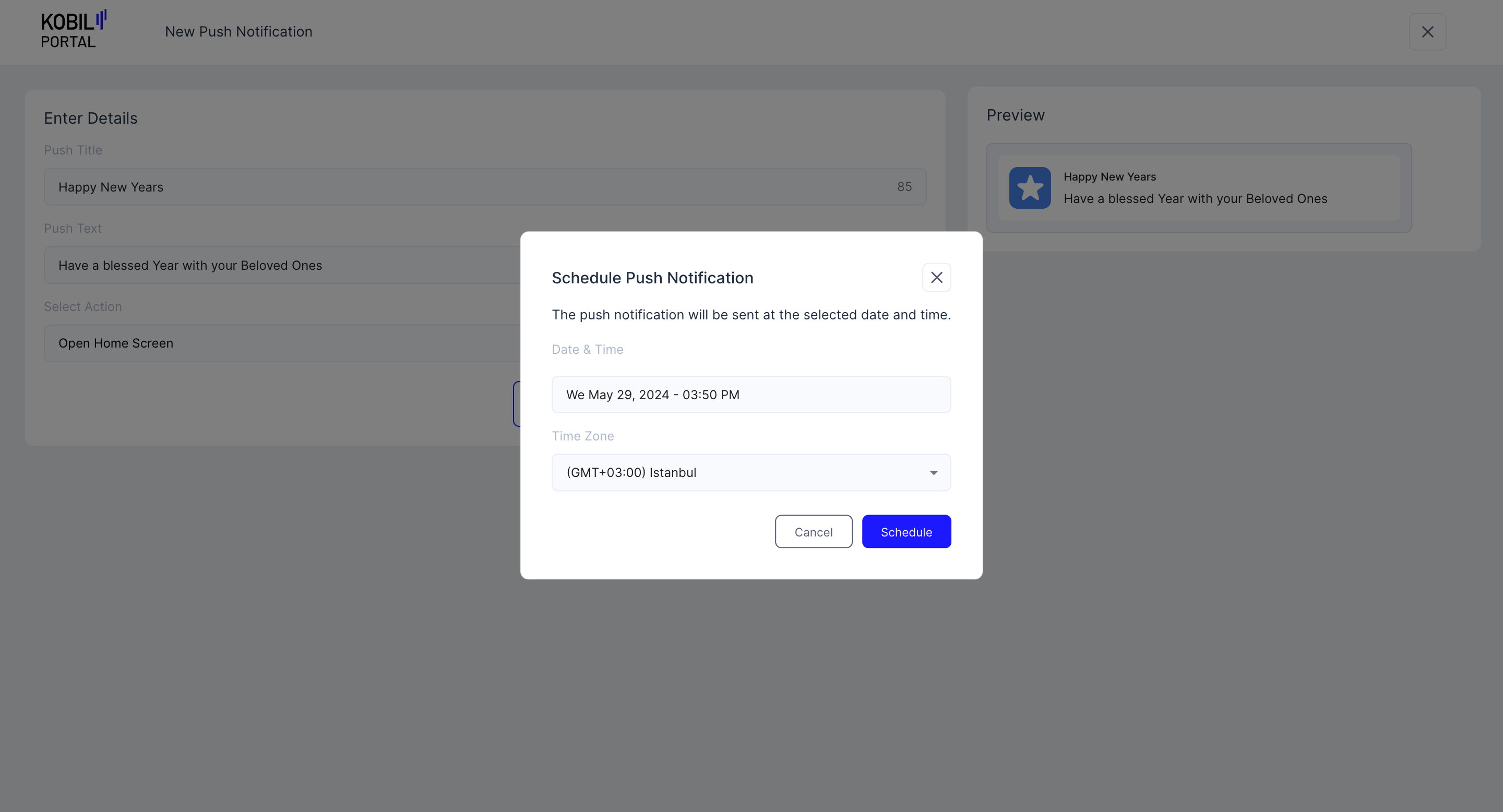
Schedule a Push Notification
1. Click on “New Push Notification” Button.
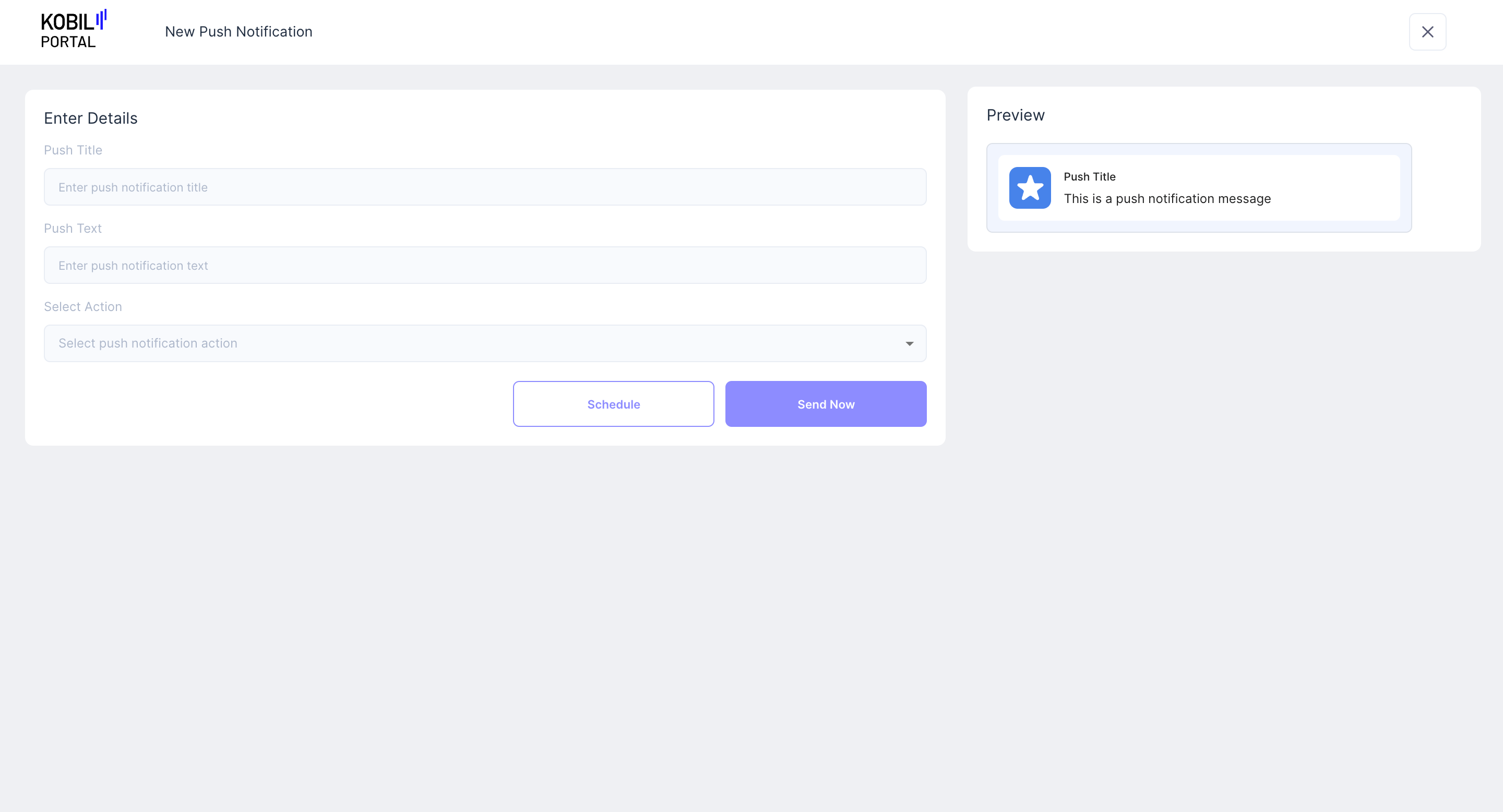
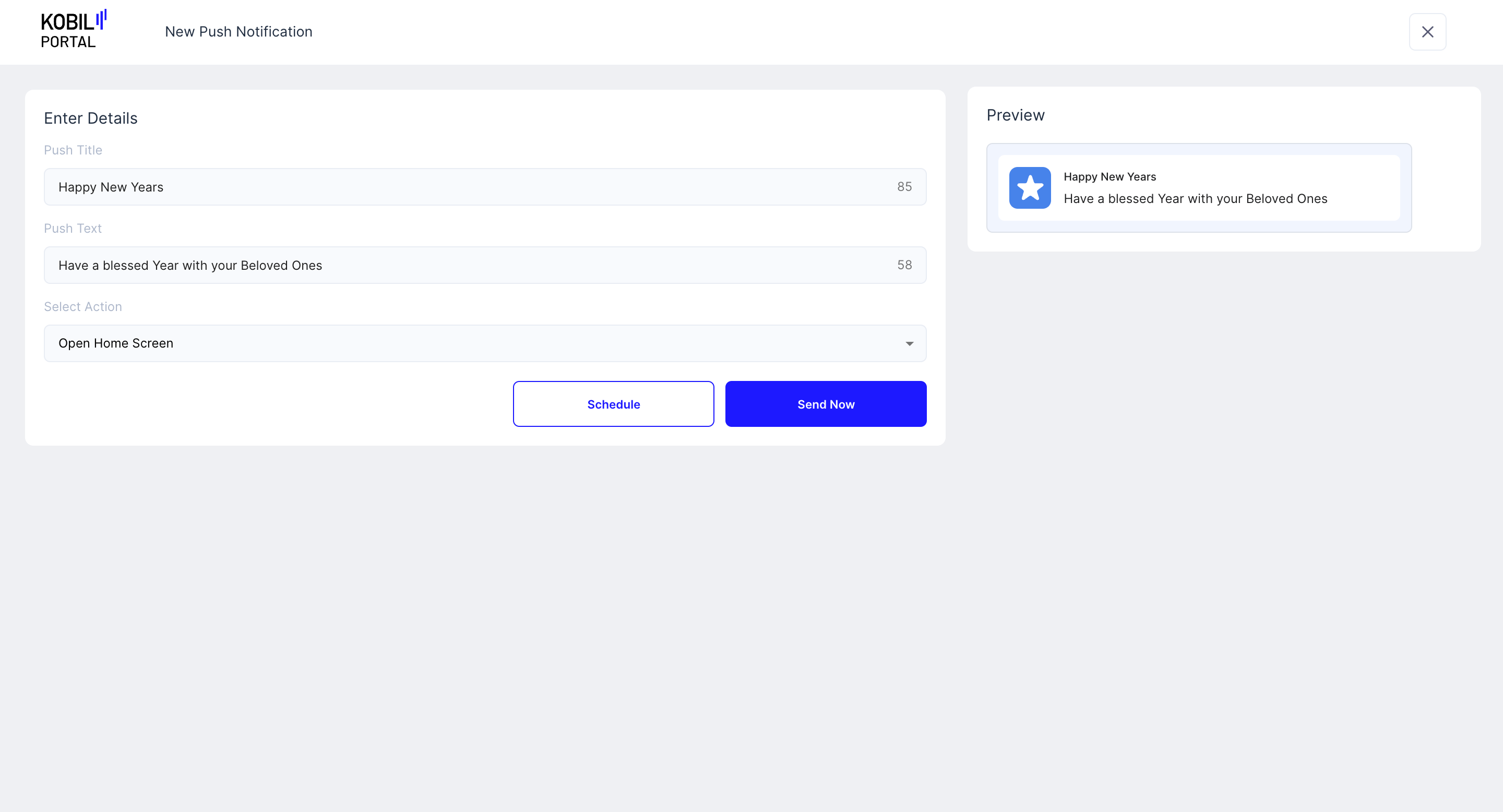
2. Enter Details
- Push Title ➞ This will appear as the Title Text on the message push notification on the user's device.
- Push Text ➞ This will appear as the text under the Push Title on the message push notification on the user's device.
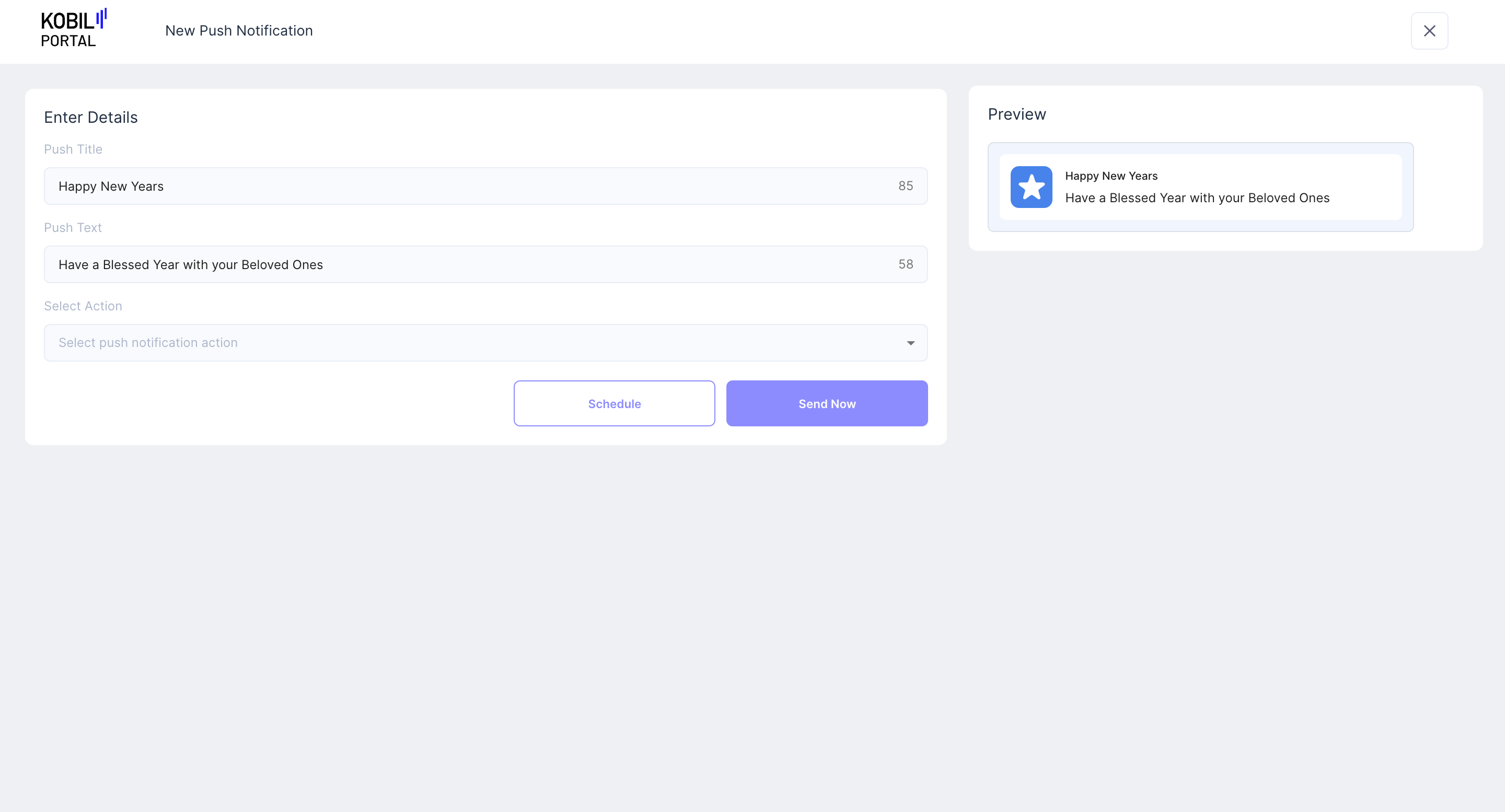
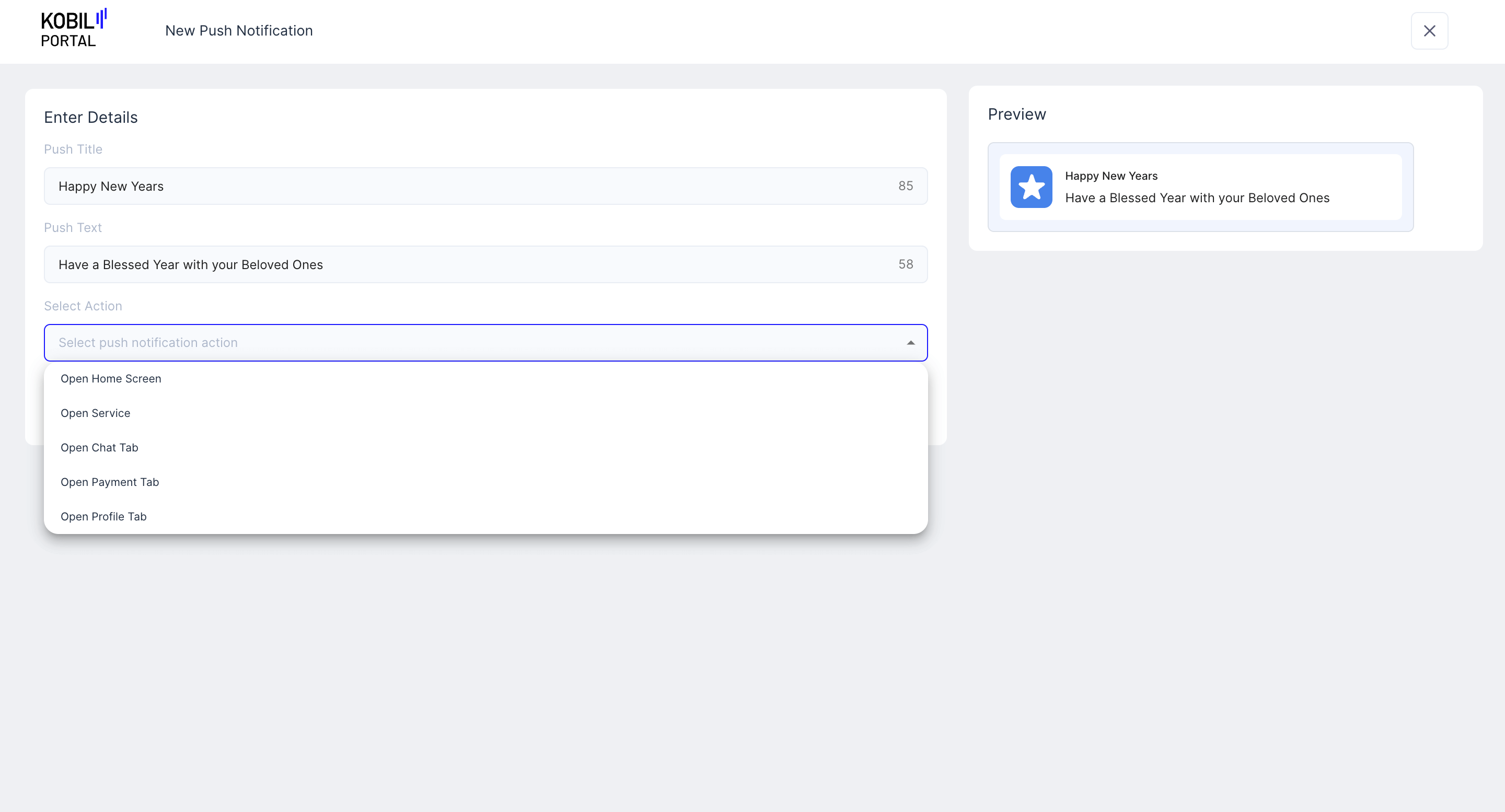
3. Select Action
- Open Home Screen ➞ The User will be redirected to the “Home Screen” inside the “SuperApp” when they tap on the notification
- Open Chat ➞ The User will be redirected to the “Chat” Tab inside the “SuperApp” when they tap on the notification
- Open Payment ➞ The User will be redirected to the “Payment” Tab inside the “SuperApp” when they tap on the notification
- Open Profile ➞ The User will be redirected to the “Profile” Tab inside the “SuperApp” when they tap on the notification
- Open Service ➞
- Select which 'Service' ➞ The User will be redirected to this service when they tap on the push notification
- init parameter ➞
Botstarbot integrations/redirecting to a specific page inside a miniapp/service
4. Finalize “Select Action”
Click on the “Schedule” button
5. Select the Date & Time when the Push Notification will be sent.
Click on “Schedule” again to confirm the scheduled Push Notification at the selected Date & Time.
info
“Workspace Member” would see a “Send Request” button in place of the “Schedule” button. Their Schedule Request has to be approved by a “Workspace Owner”, before the Message Scheduled “Broadcast” is confirmed.