KOBIL Chat
By integrating the KOBIL Chat API into your MiniApps, you can significantly enhance the overall user experience within your SuperApp ecosystem. With our API, all messages exchanged are not only encrypted but also end-to-end encrypted and digitally signed, ensuring the highest level of security for your users. It provides a seamless and frictionless communication experience while prioritizing data privacy and protection.
It's important to note that MiniApp developers can only access the KOBIL Chat API upon successful completion of KOBIL Identity integration and receipt of access tokens. This ensures that only authorized developers can utilize the Chat API, maintaining security and trust throughout the SuperApp platform.
Process Overview
The process of making the Chat API integration can be handled in two steps.
- Use services to interact with the user
- Obtain your access token
- Use Chat APIs to interact with user
- Let the user interact with you
- Prepare an Endpoint that receives user interactions
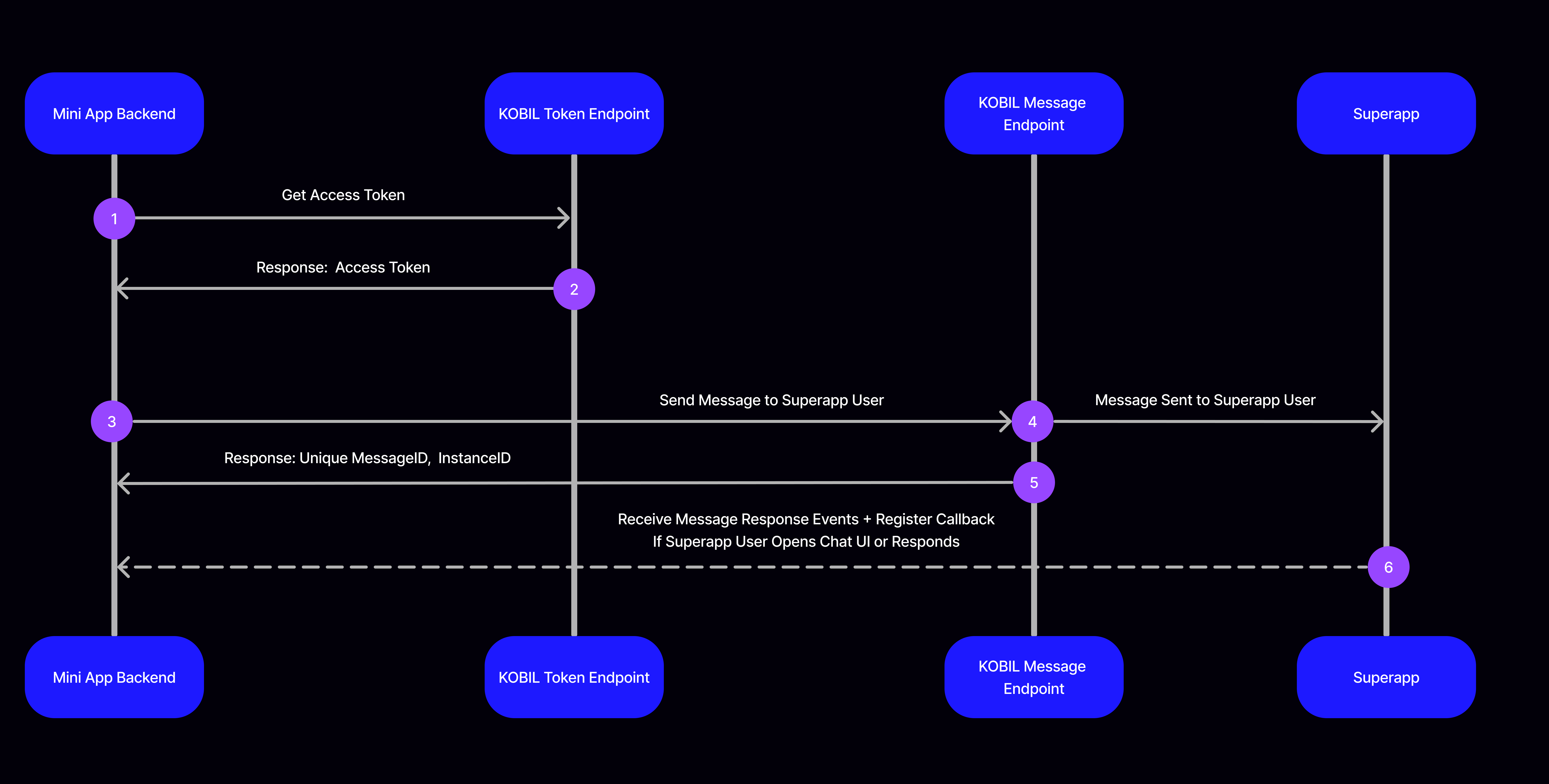
In Step 1, Your backend application passes username & password, client ID & client Secret information (given to you by SuperApp Admin) to KOBIL Identity Token Endpoint.
In Step 2, KOBIL Identity Token Endpoint returns a json object containing access token back to your backend application. See Using Client Credentials Grant for Machine-to-Machine Authentication
In Step 3, Your backend application can consume Chat API with the access token received in Step (2) and send message to the SuperApp user.
In Step 4, KOBIL Message Endpoint will be intermediate layer to deliver the message of your backend application to the SuperApp user.
In Step 5, in response of your request, KOBIL Message Endpoint will return a response including unique messageID and unique instanceID.
In Step 6, if SuperApp user sends a message and/or interacts via Chat UI, all of these messages and interactions will be forwarded to you via the registered callback address.
Use Chat API
Once you have completed the prerequisites, check out how to send messages and how to get response messages when user interacts your chat service.
You can find details about the types of messages you can send and how to send them below.
- Plain Text Message
- Multi Choice Message
- SmartScreen Service Message
- Attachment Message
- Initiate PDF Signature
When you send a message containing any above message type, Chat API will respond you by creating unique messageId like below.
{
  "messageId": "AIXTq1CexX8vakuZZ0",
  "instanceId": "instance-891a8c7a-2260-4d01-a285-cde3e9f7d113"
}
Retrieve Callback Message Upon User Interaction
We notify you when the user interacts through your chat service in SuperApp for following situations:
- When user opens your chat service,
- When user sends any type of message.
How It Works (Register Callback)
In order to be notified from the user interaction on your chat service, we
should define your API address. Once your API address is defined to Chat API,
user interactions on your chat service will be forwarded to you in json format
as a POST request.
⚠️ YOUR ENDPOINT THAT NOTIFIED BY CHAT API MUST PROVIDE THE FOLLOWING MATTERS
Accepts POST RequestAccepts JSON BodyShouldn't ask for Authorization
Callback URL registration will be defined by SuperApp Admin via Portal after your preparation of callback address is completed.
The Callback URL must be parsable and respond with HTTP status OK (200-300) to SCP's POST request
In order to make development until the callback address is defined, you can find the requests that will be forwarded to your API in user interactions as an example in our document.
Request Parameters
| Field Name | Type | Description |
| serviceUuid | String | UUID (Client ID) of the service through which the message needs to be send |
| messageType | String | The mpower chat message type. Supported values are: 'processChatMessage', 'choiceRequest', 'attachmentMessage' and 'init' |
| version | Integer | Message gateway version number (static version 3) |
| messageText | String | Message to be sent |
| attachment | File | Attach the file to be sent along with the message |
| instanceId | String | Some string value. If not provided by default a Random ID will be assigned |
Response Message Parameters
| Field Name | Type | Description |
| category | String | Type of message that user sent |
| messageText | String | Message to be sent |
| contentType | String | Information about the type and format of the attached file can be obtained |
| fileName | String | Name of the attached file |
| fileSize | Integer | Size of the attached file |
| thumbnailPreview | String | |
| mediaId | String | This is the unique id of the file. You can use this to download the file |
| messageType | String | The response message type. Supported values are: 'processChatMessage', 'choiceRequest', 'attachmentMessage' and 'init' |
| version | Integer | Message gateway version number (static version 3) |
| conversationId | String | |
| ecoId | String | Tenant name of your chat api environment |
| userId | String | User id value of the user |
| idempotencyId | String | This is a random UUID |
| messageId | String | Unique id of the message |
| timestamp | String | The date the message was sent |
| serviceUuid | String | Service client id from which the message came |
| instanceId | String | Some string value. If not provided by default a Random ID will be assigned |
Sending Messages
You can send multiple types of messages using this endpoint by adjusting the messageType field:
POST
https://idp.cloud.test.kobil.com/auth/realms/{TENANT_NAME}/mpower/v1/users/{USER_ID}/message
Content Type: application/json
Send Plain Text Message
Sends a simple textual message to the SuperApp user. This is the most basic message type and is commonly used for general-purpose communications, such as notifications, confirmations, or plain chat interactions. It does not contain buttons, media, or interactive components.
Example Request Body
{
  "serviceUuid": "fc6478a7-320f-40ca-9f90-4e3d2443f293",
  "messageType": "processChatMessage",
  "version": 3,
  "messageContent": {
    "messageText": "Hi, How are you?"
  }
}
Received Plain Message Response
When the user responds to your chat service as plain text, we will deliver this response to you via API. You can find sample request that delivered to your API below.
Sample Request Sent by Chat API
{
  "message": {
    "category": "chat",
    "content": {
      "messageContent": {
        "messageText": "Hi, How are you?"
      },
      "messageType": "processChatMessage",
      "version": 3
    },
    "conversationId": "Qrs3Av17NShN39h2Nv3QZW2OXlbWyVEu4EzJ4UEwAYQ=",
    "from": {
      "ecoId": "flutter",
      "userId": "44444444444"
    },
    "idempotencyId": "439ef085-d16f-4543-baef-4c52634294f0",
    "messageId": "AHfDYvVCF6FbvdIppv",
    "timestamp": "2022-03-22T07:23:37.812Z",
    "serviceUuid": "fc6478a7-320f-40ca-9f90-4e3d2443f293",
    "instanceId": "520798da-3143-44a0-a893-7d92b7fc5174"
  }
}
Send Multi Choice Message
Allows you to send a message with multiple response options (e.g., Yes / No). When the user selects one of the predefined choices, the selected answer is forwarded back to your service via callback. This is ideal for collecting quick decisions, approvals, or feedback.
Example Request Body
{
  "serviceUuid": "fc6478a7-320f-40ca-9f90-4e3d2443f293",
  "messageType": "choiceRequest",
  "version": 3,
  "messageContent": {
    "messageText": "Would you like to continue?",
    "choices": [
      {
        "text": "Yes"
      },
      {
        "text": "No"
      }
    ]
  }
}
Received Choice Message Response
When the user chooses a choice, we will deliver this response to you via API. You can find sample request that delivered to your API below.
Sample Request Sent by Chat API
{
  "message": {
    "category": "chat",
    "content": {
      "messageContent": {
        "messageText": "Yes"
      },
      "messageType": "choiceResponse",
      "version": 3
    },
    "conversationId": "Qrs3Av17NShN39h2Nv3QZW2OXlbWyVEu4EzJ4UEwAYQ=",
    "from": {
      "ecoId": "flutter",
      "userId": "44444444444"
    },
    "idempotencyId": "439ef085-d16f-4543-baef-4c52634294f0",
    "messageId": "AHfDYvVCF6FbvdIppv",
    "timestamp": "2022-03-22T07:23:37.812Z",
    "serviceUuid": "fc6478a7-320f-40ca-9f90-4e3d2443f293",
    "instanceId": "520798da-3143-44a0-a893-7d92b7fc5174"
  }
}
Send SmartScreen Service Message
Initiates a redirection to another SmartScreen MiniApp. This type of message is
used when you want to trigger an action in another part of the SuperApp or open
a MiniApp based on user input. It includes a deep link via
smartScreenServiceUuid.
Example Request Body
{
  "serviceUuid": "fc6478a7-320f-40ca-9f90-4e3d2443f293",
  "messageType": "smartScreenService",
  "version": 3,
  "messageContent": {
    "messageText": "Hello, this is a SmartScreen Service Message",
    "smartScreenServiceUuid": "service_client_id"
  }
}
Common Response Body For All Sending Messages
When you send a message, KOBIL Chat API will respond you by creating unique
{
  "messageId": "AIXTq1CexX8vakuZZ0",
  "instanceId": "instance-891a8c7a-2260-4d01-a285-cde3e9f7d113"
}
Sending Attachment Message
Allows sending multimedia files such as images, PDFs, or documents to the user.
This message type is useful when sharing contracts, invoices, or any binary
content. Requires a multipart/form-data request body with a valid file and
message metadata.
This API is called as multipart/form-data
POST
https://idp.cloud.test.kobil.com/auth/realms/{TENANT_NAME}/mpower/v1/users/{USER_ID}/media
Content Type: multipart/form-data
Example Request Body
attachment: file.jpg
message: {
  "serviceUuid": "fc6478a7-320f-40ca-9f90-4e3d2443f293",
  "messageType": "attachmentMessage",
  "version": 3,
  "messageContent": {
    "messageText": "${message}"
  }
}
Example Response Body
{
  "messageId": "AIXTq1CexX8vakuZZ0",
  "instanceId": "instance-891a8c7a-2260-4d01-a285-cde3e9f7d113"
}
Received Attachment Message Response
When the user sends an attachment, we will deliver this response to you via API. You can find sample request that delivered to your API below.
Sample Request Sent by Chat API
{
  "message": {
    "category": "chat",
    "content": {
      "mediaContent": {
        "contentType": "image/jpeg",
        "fileName": "1649919101370203.jpeg",
        "fileSize": 173705,
        "thumbnailPreview": "L9OWyt~q?ct7%gWVs;t7?HIUR%t7",
        "mediaId": "QUlRcVd3ME1qU3d2dDRGU3NiOjE4YmE1MGRmLTFiYTEtNGEzMC05ZjAyLTYyM2U2ZWZiODI2YQ=="
      },
      "messageContent": {
        "messageText": ""
      },
      "messageType": "attachmentMessage",
      "version": 3
    },
    "conversationId": "hdT+qmEa8ryNVUHFyZCQk8vLfM0BBuxWS95+CB+t2XA=",
    "from": {
      "ecoId": "flutter",
      "userId": "11111111111"
    },
    "idempotencyId": "863e4ae5-abaa-4584-9adc-b73f67ce80c9",
    "messageId": "AIQqWw0MjSwvt4FSsb",
    "timestamp": "2022-04-14T06:51:42.086Z",
    "serviceUuid": "fc6478a7-320f-40ca-9f90-4e3d2443f293",
    "instanceId": "instance-7ef9e560-7384-4e79-9b20-bdab0cc0003f"
  }
}
Get Attachment file for Attachment Message Response
To get attachment that sent by user, make a GET request to this API, you
should fill out {MEDIA_ID} as media id of file that you want to get.
POST
https://idp.cloud.test.kobil.com/v1/mpower/tenants/{TENANT_NAME}/media/{MEDIA_ID}/download
To be able to download the media, a request must be made using a token obtained from the client that sent the media.
Sending PDF Signature Request
Sends a document to the user for digital signing. The file must be a PDF, and coordinates must be provided for the signing area. Once the user signs the document, the signed version is delivered back to your callback endpoint. This is used for formal approvals, agreements, or consent-based workflows.
POST
https://idp.cloud.test.kobil.com/auth/realms/{TENANT_NAME}/mpower/v1/users/{USER_ID}/signature
Content Type: multipart/form-data
Example Request Body
{
  signatureFile: <File>,
  signatureData: {
      "version":3,
      "pageNumber":1,
      "bottomLeftXCoordinate":59,
      "bottomLeftYCoordinate":89,
      "topRightXCoordinate":85,
      "topRightYCoordinate":96,
      "serviceUuid":"c033eab7-c7a7-4892-abb5-2fb68f14d5a2",
      "messageText":"Please sign here",
      "callbackUrl":"https://<HOST>/path"
  }
}
Example Response Body
{
  "messageId": "AIXTq1CexX8vakuZZ0",
  "instanceId": "instance-891a8c7a-2260-4d01-a285-cde3e9f7d113"
}
Received PDF Signature Response
When the user responds to your chat service by signing the corresponding PDF document, we will deliver this response to you via API. You can find the sample request that delivered to your API below.
Sample Request Sent by Chat API
{
  "message": {
    "content": {
      "mediaContent": {
        "contentType": "application/pdf",
        "fileName": "Agreement.pdf",
        "fileSize": 1529617,
        "thumbnailPreview": "",
        "mediaId": "QWhXMnJFUWtPVmRKb20wUlVJOkFoVzJ4UGkzUUk0TWVoTmNQcA=="
      },
      "messageContent": {
        "messageText": "Signed"
      },
      "messageType": "signatureResponse",
      "signatureStatus": "signed",
      "version": 3
    },
    "from": {
      "ecoId": "johndoe123",
      "userId": "john.doe@gmail.com"
    },
    "messageId": "AhW2rEQkOVdJom0RUI",
    "responseId": "AhW2xQt2ziR8BkCSv1",
    "timestamp": "2024-05-03T13:47:00.791Z",
    "serviceUuid": "c033eab7-c7a7-4892-abb5-2fb68f14d5a2",
    "instanceId": "e016ec12-4d93-44e9-9d7c-fceca765f0a7"
  }
}
PDF Signature Parameters:
| Field Name | Type | Description |
| signatureFile | File | File you wanted to sign |
| signatureData | JSON | Data required to initiate PDF sign |
| pageNumber | integer | File you wanted to sign |
| topRightXCoordinate | number | Right side Top X-axis value to start signature area |
| topRightYCoordinate | number | Right side Top Y-axis value to start signature area |
| bottomLeftXCoordinate | number | Left side Bottom X-axis value to start signature area |
| bottomLeftYCoordinate | number | Left side Bottom Y-axis value to start signature area |
| serviceUuid | uuid | UUID (Client ID) of the service through which signature needs to be send |
| messageText | String | Message to be displayed while sending document |
| callbackUrl | URL | URL which you want to receive pdf signature result (should be of POST method) |
| instanceId | string | Some string value. If not provided by default a Random ID will be assigned |
Message Styling
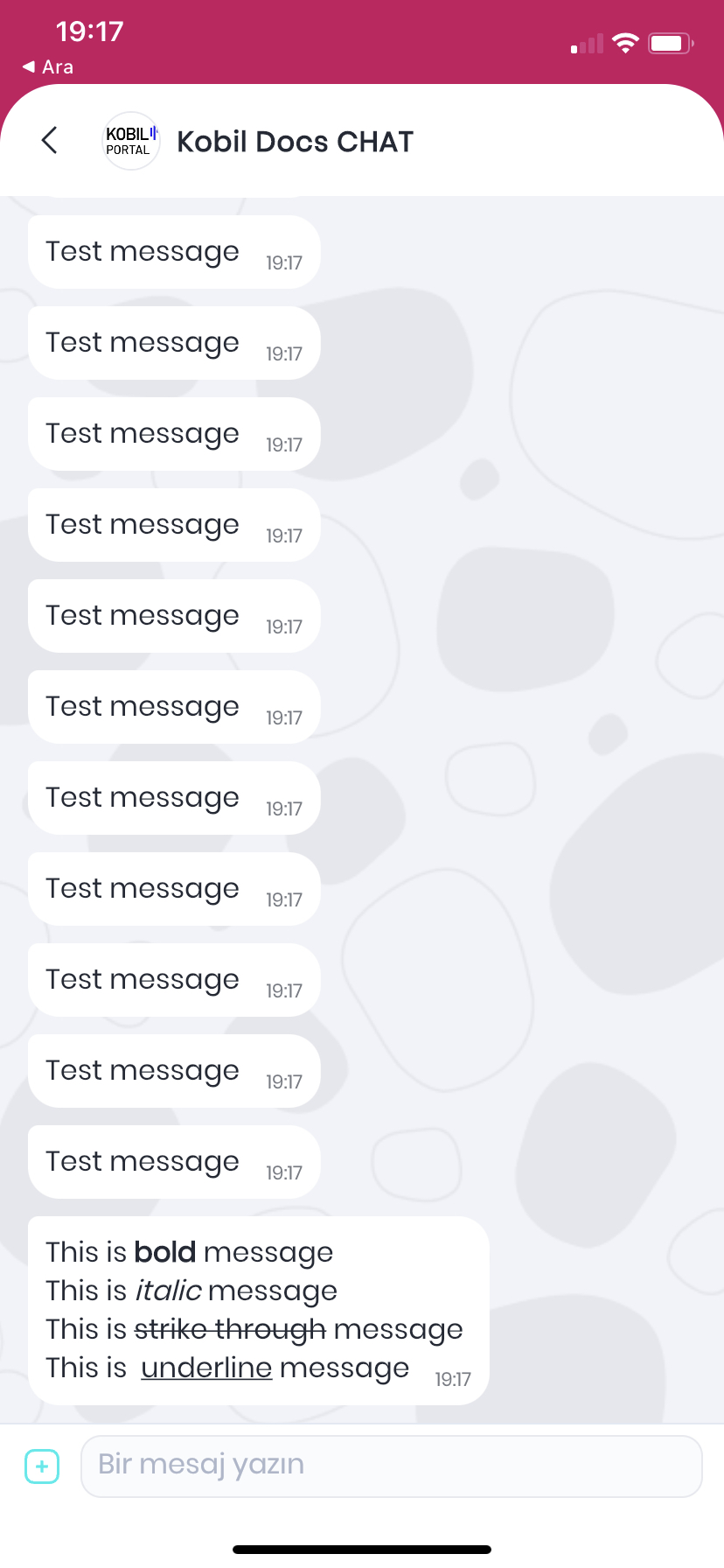
Kobil Chat provides you to some styling options when sending a message. There are 4 different style supported which are given below with their special characters:
Using the Chat API, you can send some parts that wanted to be styled within below special characters
You can send bold message inside *
Example: This is *bold* message
You can send bold message inside _
Example: This is _italic_ message
You can send bold message inside ~
Example: This is ~strike through~
message
You can send bold message inside ```
Example: This is ```underline```
message
You can use \n to move to a new line.
Example: This is \n a message
Troubleshooting
401 Unauthorized
{
  "error": "HTTP 401 Unauthorized"
}
This error occurs when you use an invalid access token. Access token could be invalid for one of below reasons
- The token you receive may not be valid for the service you want to access. The serviceUuid and clientId values you use must be equal to each other.
- The account from which you receive the token may not have sufficient privileges, in this case, you should contact the relevant system administrator.