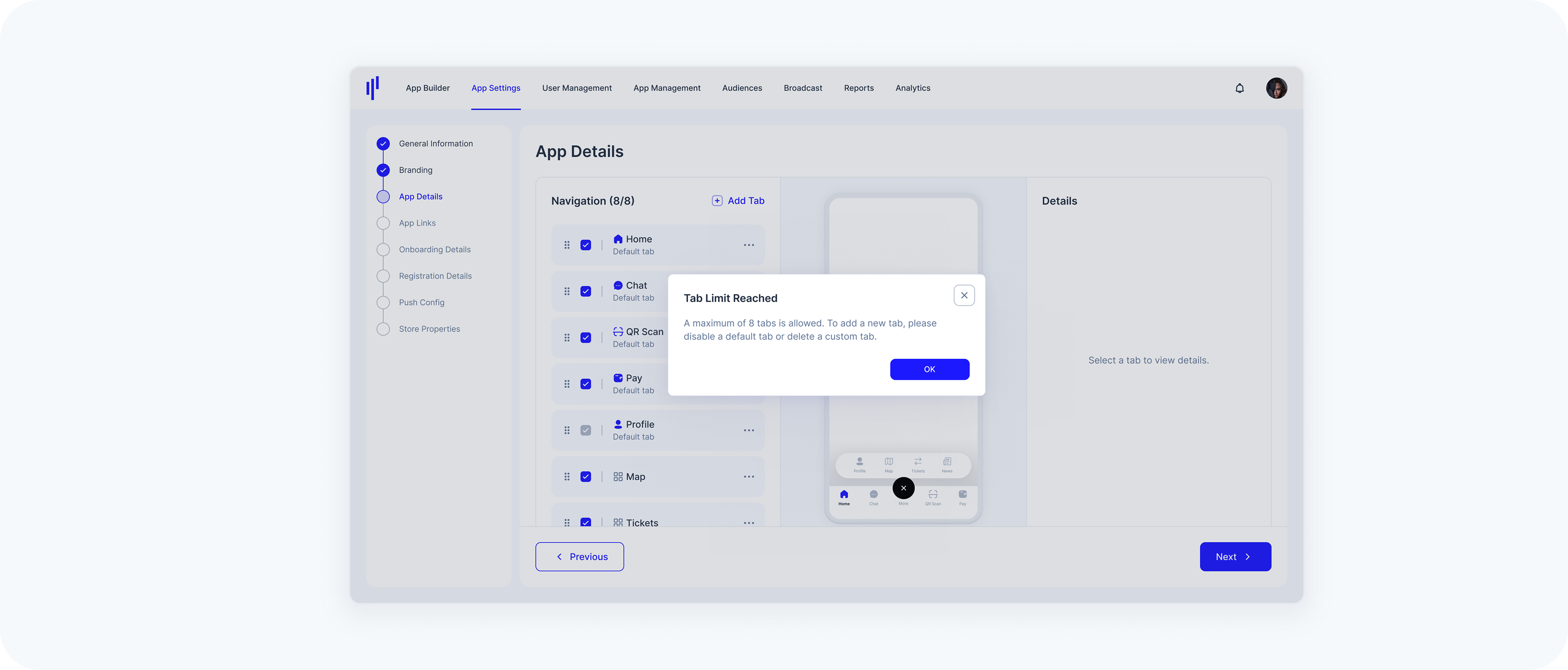
App Details
The App Details section allows you to configure the bottom navigation of your SuperApp. You can add custom tabs, show or hide default tabs, reorder them, and select which tab opens first for users. These settings are essential for tailoring the navigation experience to match your app’s structure and priorities.
Note: If no customization is applied, the default tabs will be displayed automatically. Remember to click Save Changes to publish.

Default Tabs
The SuperApp includes default tabs: Home, Chat, QR Scan, Pay, and Profile.
- Home → The main entry point where users can explore and access all available services in your app.
- Chat → A central hub for communication, allowing users to connect and interact seamlessly.
- QR Scan → A fast and convenient tool for scanning QR codes to make payments, access services, or unlock features.
- Pay → A secure hub for managing transactions, payments, and cards, providing quick access to transaction and purchase history.
- Profile → A personal space where users can view and update their account information, settings, and preferences.
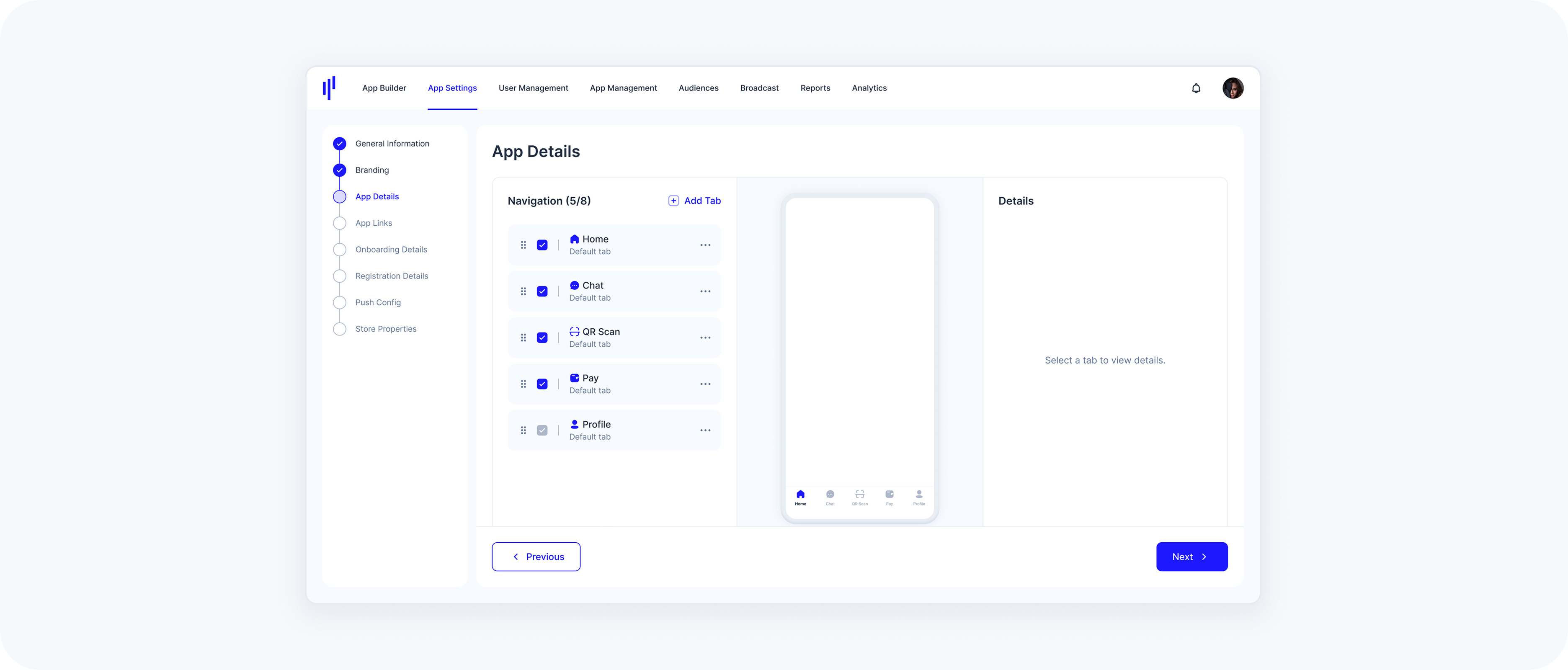
Add Custom Tab
You can add Custom Tabs that open any web URL directly inside the app. These tabs allow you to extend the functionality of your SuperApp by integrating external services, content, or resources.
The number of Custom Tabs you can add depends on how many Default Tabs are visible:
- If all 5 Default Tabs are shown, you can add up to 3 Custom Tabs (total = 8).
- If you hide one or more Default Tabs, you can add more Custom Tabs — but the total number of tabs (Default + Custom) cannot exceed 8.
- Click Add Tab.
- Enter a Tab Name – This is the label shown under the icon. Keep it short so it fits nicely.
- Enter a Tab URL – This is the web page that will open inside the tab.
- Choose an Icon – Select from the suggested icons or upload your own.
- Click Add Tab to confirm, then Save Changes to apply the update.
Icon Upload Requirements
- File type: SVG or PNG with transparent BG
- Size: 512 × 512 px (for PNGs)
- When uploading PNGs, make sure all empty areas are transparent.
- If empty areas are not transparent, they will be treated as filled and won’t display correctly.
- Since colors are applied dynamically to icons, only the transparent and non-transparent areas are recognized for color application.
- Default Tabs cannot be deleted.
- Custom Tabs can be created, edited, or removed at any time.
- The full list of tabs (Default + Custom) may not exceed 8 tabs in total.
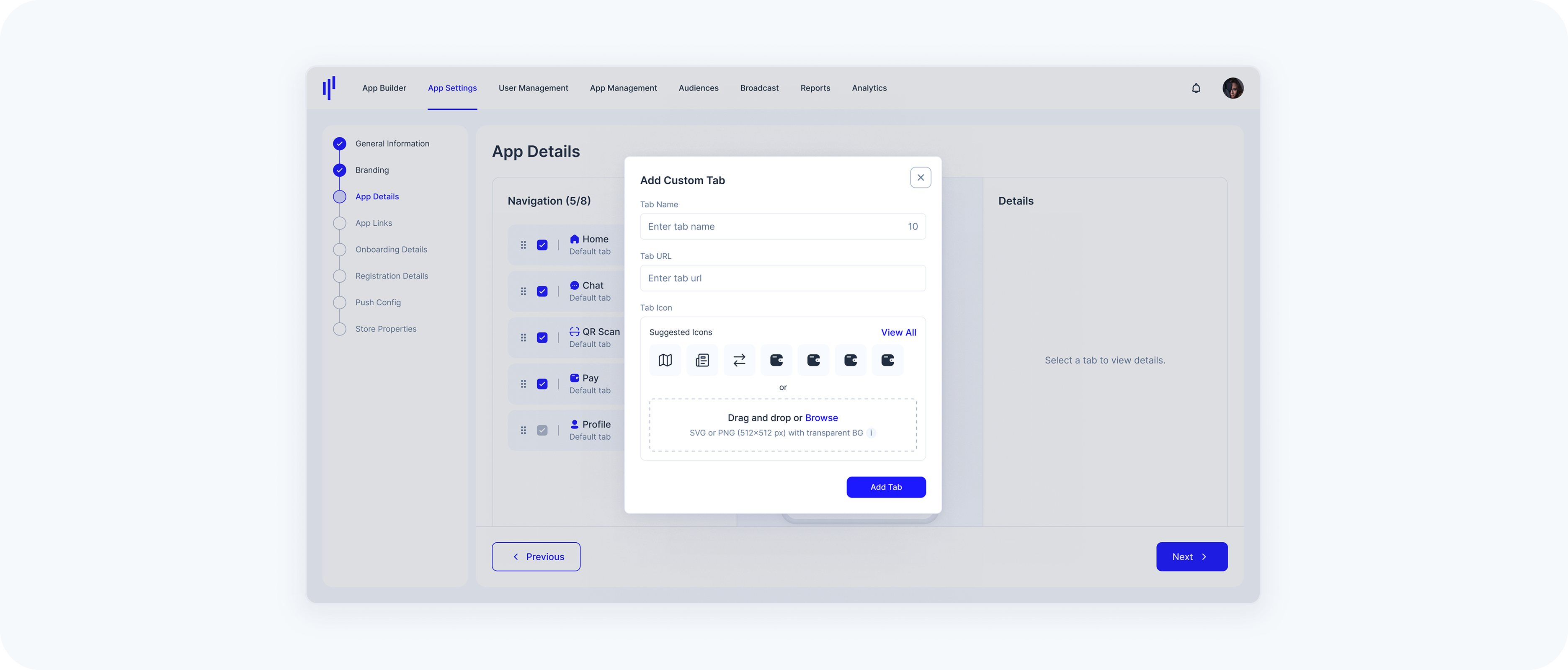
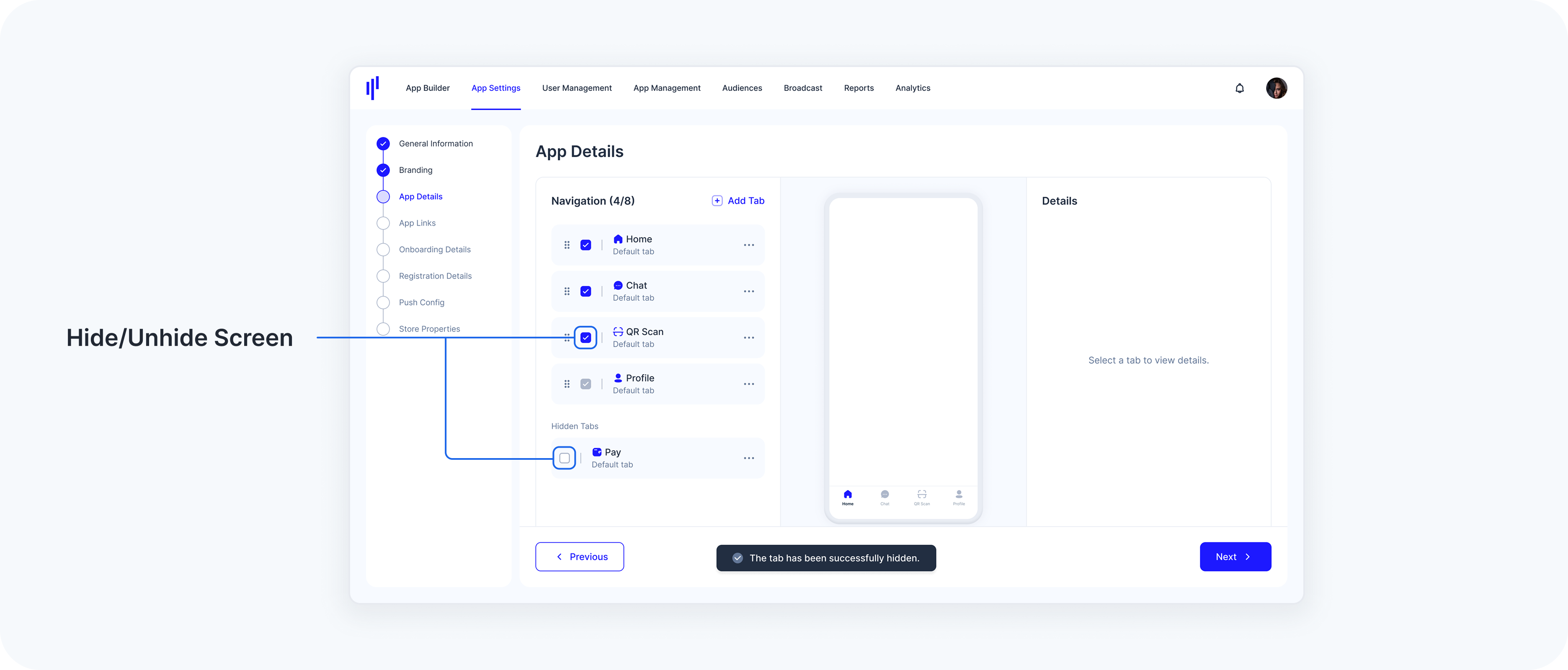
Show/Hide Tab
You can choose which tabs are visible in the bottom navigation bar.
- Go to Navigation.
- Tick the checkbox to show a tab, or untick it to hide a tab.
- Preview your updates in the device mockup.
- Profile is mandatory and cannot be hidden.
- A maximum of 8 tabs can be visible at the same time. If 8 are already selected, you must hide one before enabling another.
Swap Tabs
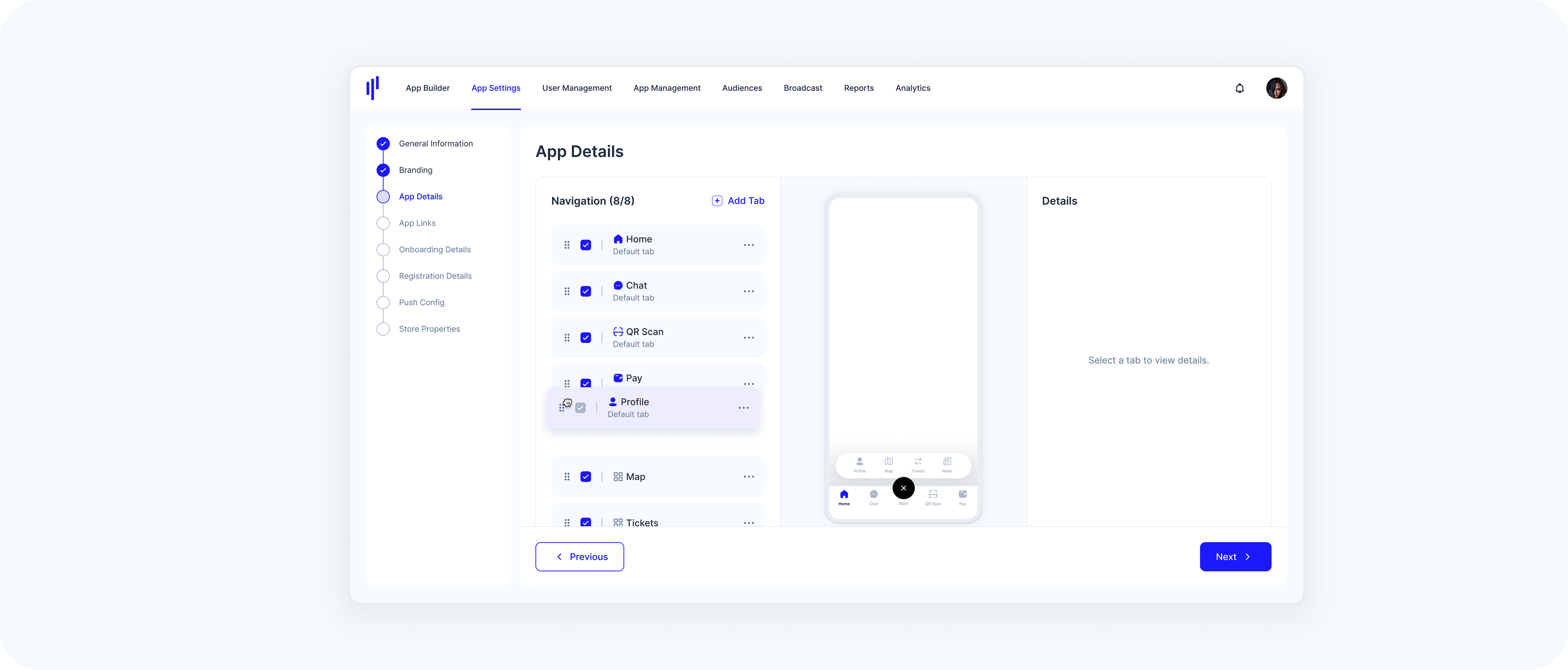
You can reorder tabs as they appear in the bottom navigation bar.
- Use the drag handle (::) next to a tab to move it.
- Drag and drop the tab into the desired position.
- The Preview updates in real time to show the new order.
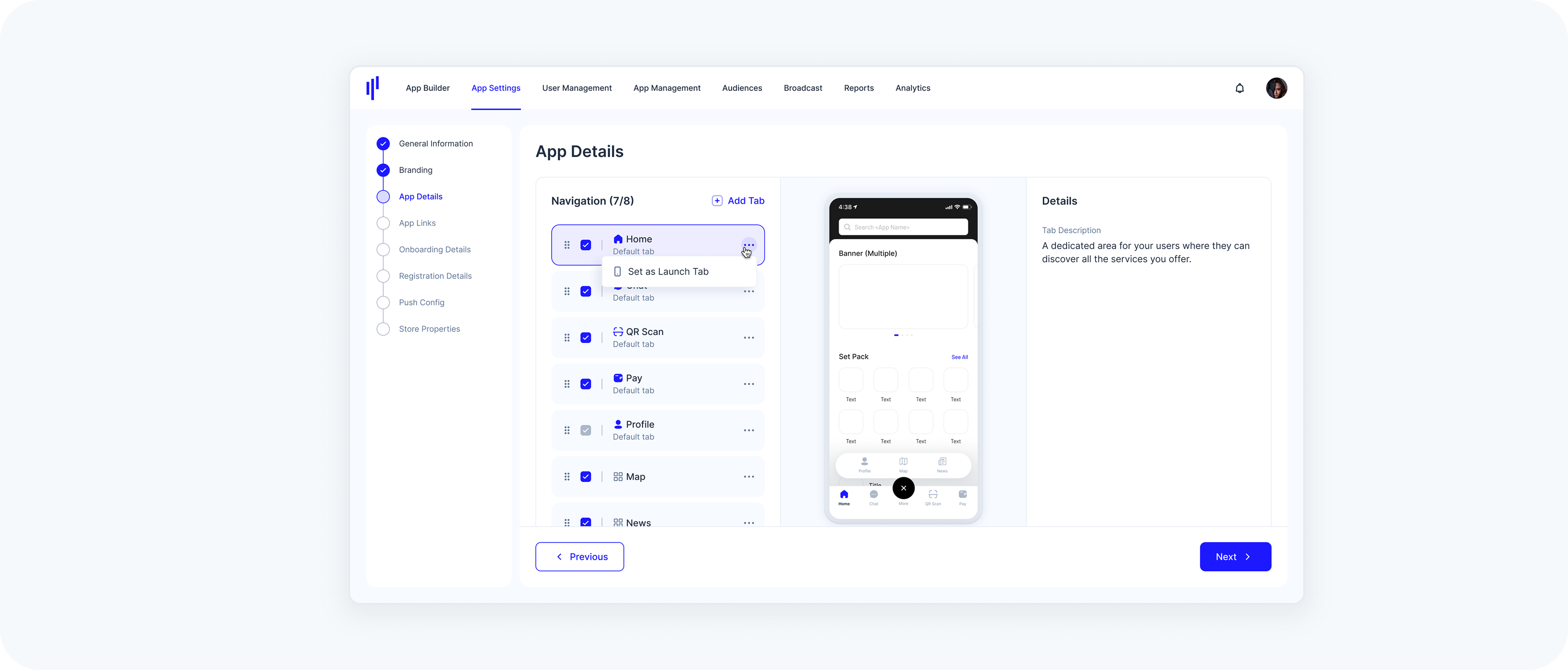
Set as Launch Tab
The Launch Tab is the first screen users see when they open the app.
- By default, the Home tab is automatically set as the Launch Tab.
- To change it, tap the action menu (:) next to a tab and select “Set as Launch Tab”.
- Both Default Tabs and Custom Tabs can be set as the Launch Tab.
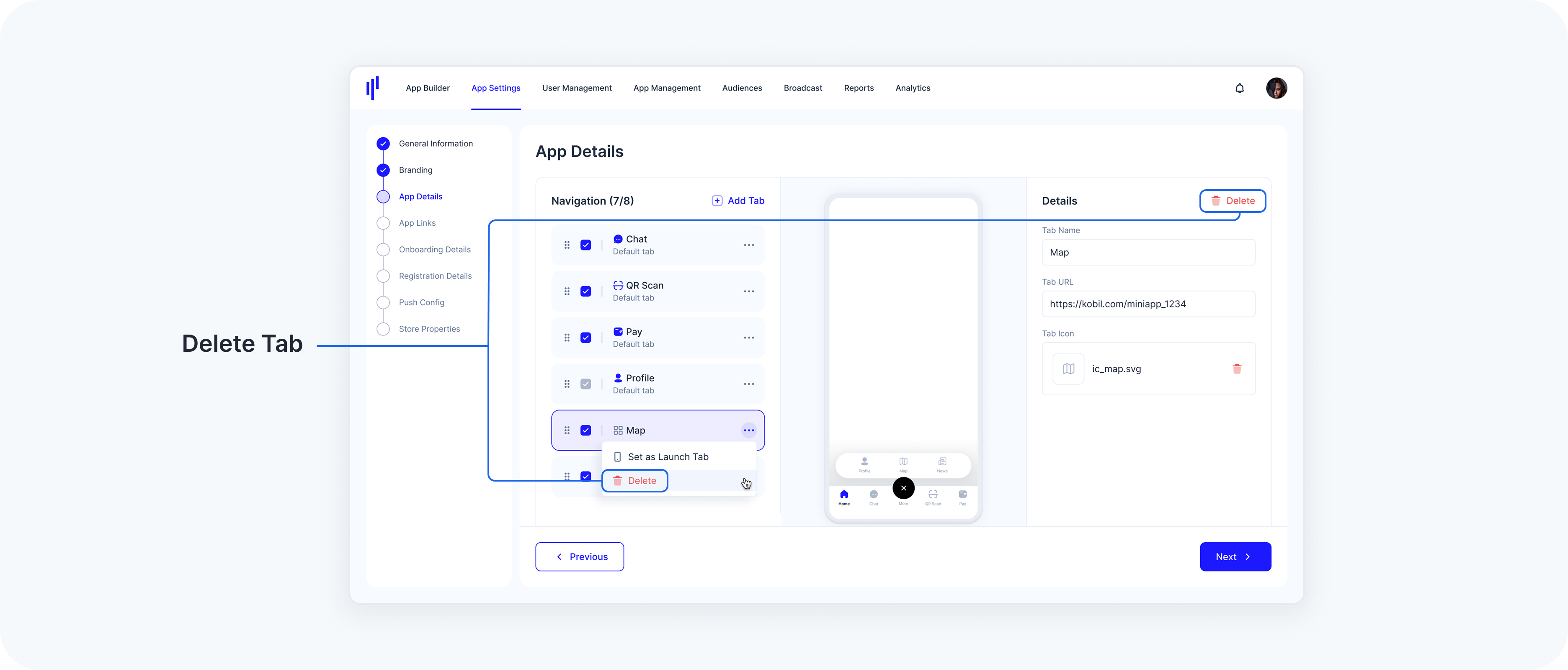
Delete Tab
Default Tabs (Home, Chat, QR Scan, Pay, Profile) cannot be deleted.
- To remove them from the bottom bar, simply hide them.
- Profile is mandatory and always visible.
Custom Tabs can be deleted in two ways:
- From the Details panel.
- By clicking the action menu (:) on the tab and choosing Delete.
Deleting a Custom Tab frees up one of your available custom-tab slots.
Tab Limit Reached
If you see “Tab limit reached” when trying to add a new Custom Tab:
- You may already have 8 visible tabs.
- Hide a Default Tab and try again.
- Delete or repurpose an existing Custom Tab.
- Remember: the total number of tabs (Default + Custom) cannot exceed 8.