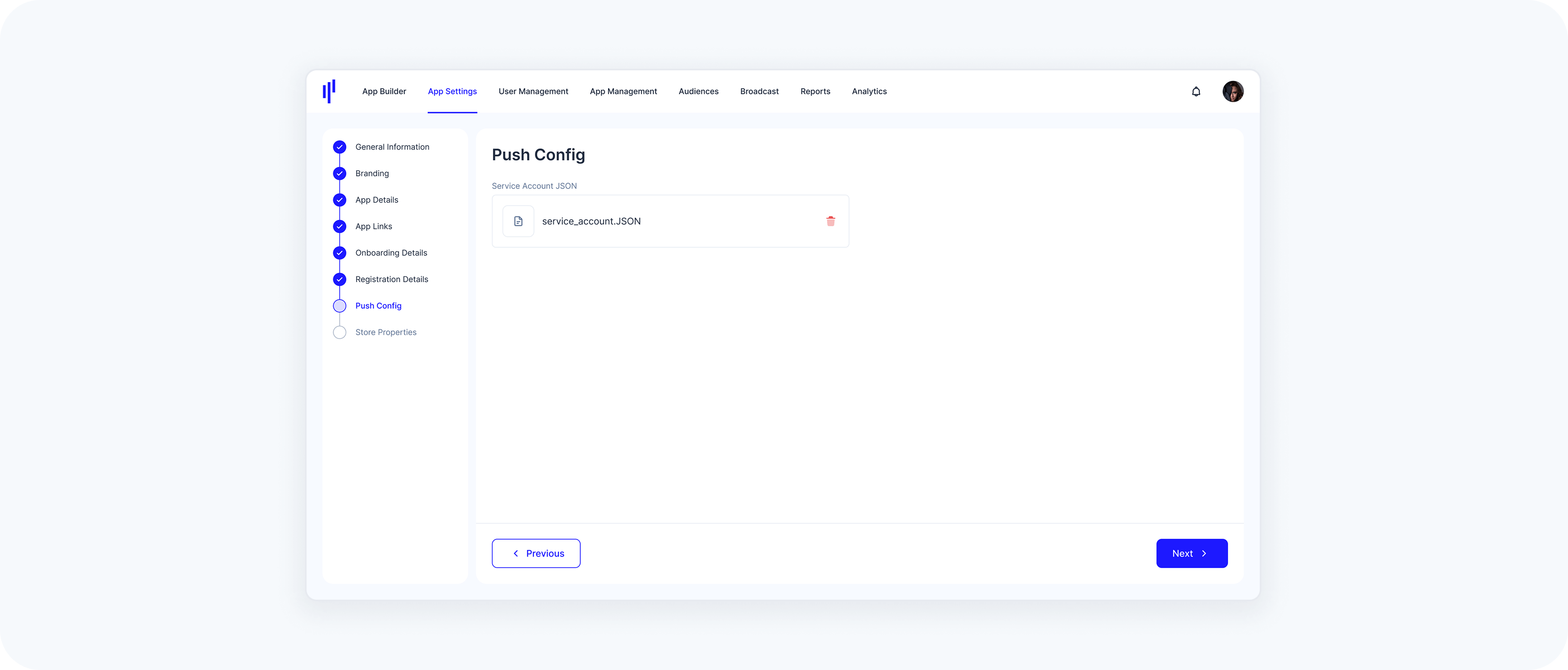
Push Config
Note: Configuring Push Notifications is optional, during SuperApp creation. If you choose not to enable Push Notifications initially, it is important to note that this action is irreversible. To enable Push Notifications later, you would need to create and release a new version of your SuperApp.

Enable Push Notifications
To enable push notifications in your branded SuperApp, follow the steps below for your iOS and Android SuperApps. After configuring your SuperApp from the Firebase Console, download the Service Account JSON file and upload it to the KOBIL PORTAL.
Instruction for iOS App
Instruction for iOS App
- Go to Firebase Console. Create a new project or select an existing one.
Add iOS App
- Click “Add app” -> Select iOS
Fill in the following:
Apple Bundle ID: com.kobil.superapp.araboxcloud.{yourTenantName}
- App nickname (optional): Your SuperApp name
- App Store ID (optional): Leave blank if not available
Skip the following setup steps:
- Skip Download GoogleService-Info.plist
- Skip Add Firebase SDK
- Skip Add initialization code
- Click “Continue to console”
Upload Apple Push Notification (APNs) Key
- Go to Project Settings > Cloud Messaging tab
- Scroll to Apple app configuration
- Select your iOS app from the dropdown
- Click “Upload” under APNs authentication key
How to Get APNs Key
- Go to Apple Developer Portal
- Navigate to Certificates, Identifiers & Profiles
If you don’t already have a key:
- Click “+” (Create Key)
- Enable Apple Push Notifications service (APNs)
- Name the key and download the .p8 file
- Upload it to Firebase with your Key ID and Team ID
Instruction for Android App
Instruction for Android App
- Go to Firebase Console. Create a new project or select an existing one.
Add Android App
- Click “Add app” -> Select Android
Fill in the following:
Apple Bundle ID: com.kobil.superapp.araboxcloud.{yourTenantName}
- App nickname (optional): Your SuperApp name
- Debug signing certificate: Leave empty
Skip the following setup steps:
- Skip Download GoogleService-Info.plist
- Skip Add Firebase SDK
- Skip Add initialization code
- Click “Continue to console”
Download Service Account JSON (Firebase Service Account Key)
- In Firebase Console, go to your project.
- Click the gear icon -> Project Settings
- Navigate to the Service Accounts tab
- Click “Generate new private key”
- ServiceAccount.json will be downloaded
Almost everything is ready, you have now downloaded your ServiceAccount.json, and will upload this file to the KOBIL PORTAL under App Settings to enable Push Notification for your SuperApp .