Update Home Screen
Once your Home Screen(s) are ready to go live, you’ll need to release (or update) it so users can actually see the changes in your app. This step finalizes your edits and makes the screen live.
Where to Find It
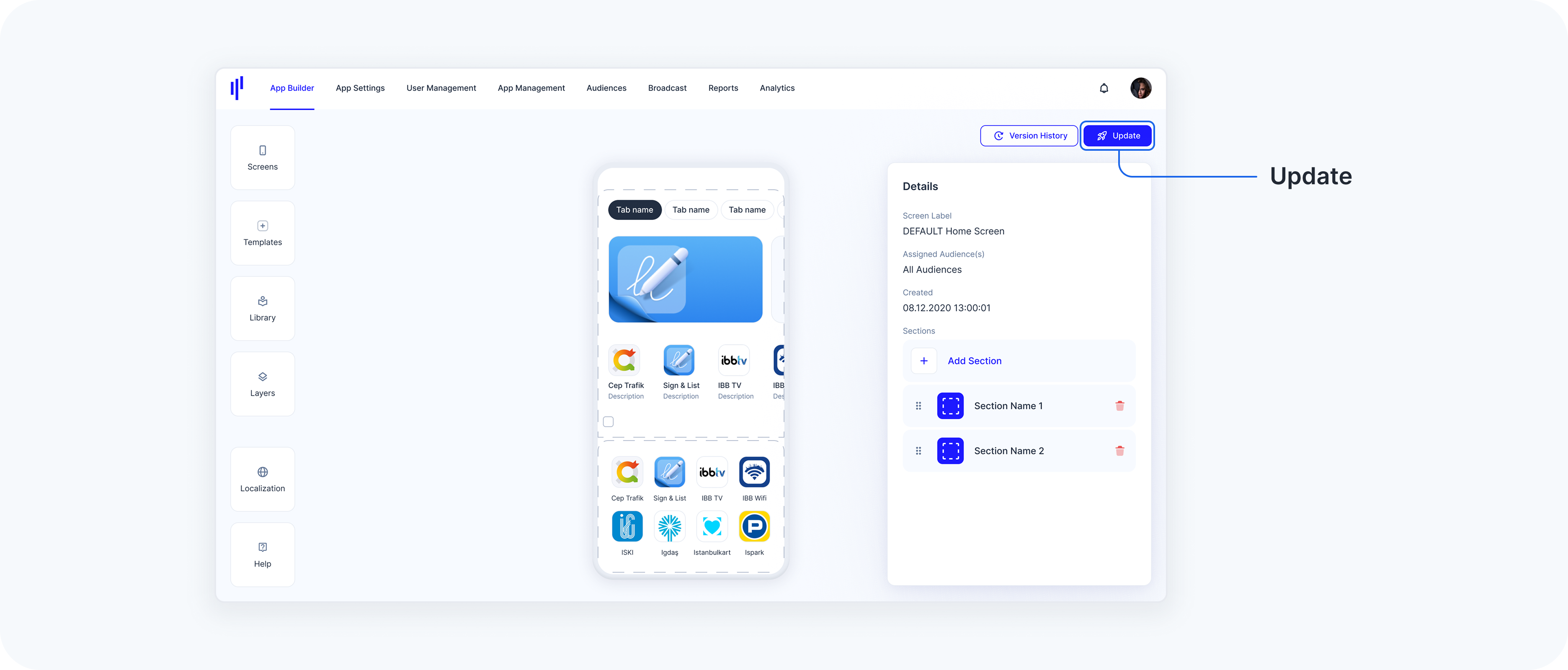
You can find the Update button in the top-right corner of the App Builder UI. Clicking it opens a modal that lets you manage the release status of all screens in your app.
When Should I Update?
You should update your screen:
After adding new components or editing existing ones.
After adding, editing, reordering sections, tabs, titles, or services .
After assigning services, updating service icons, or making visual layout changes
After making layout or visibility changes.
If you restore an older version of your screen via Version History.
When a screen has the status Update in the modal window.
- After testing and confirming the screen looks and behaves as intended
Updating is necessary for users to see the latest changes on their devices. Until you release the screen, it remains visible only inside the builder.
The Update button becomes active only when unsaved changes are detected.
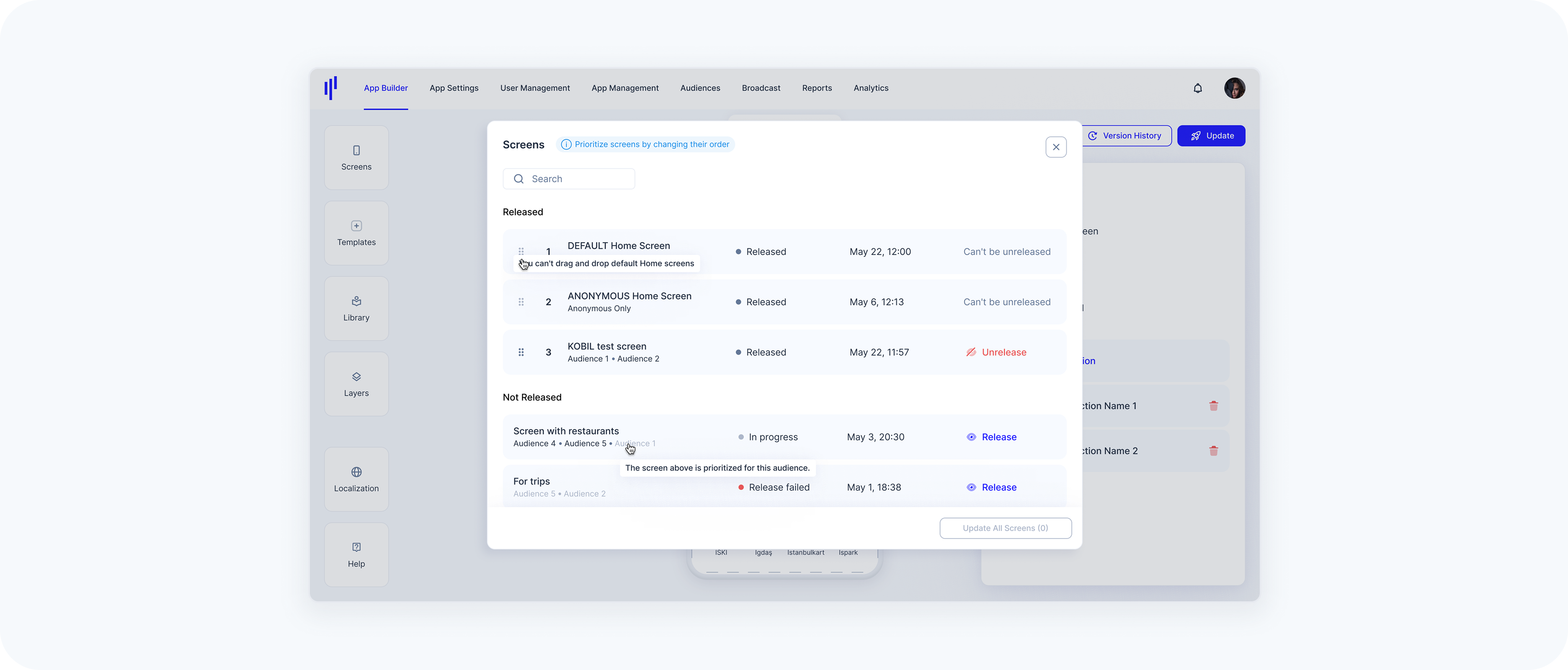
The Update Modal: Screen Status Overview
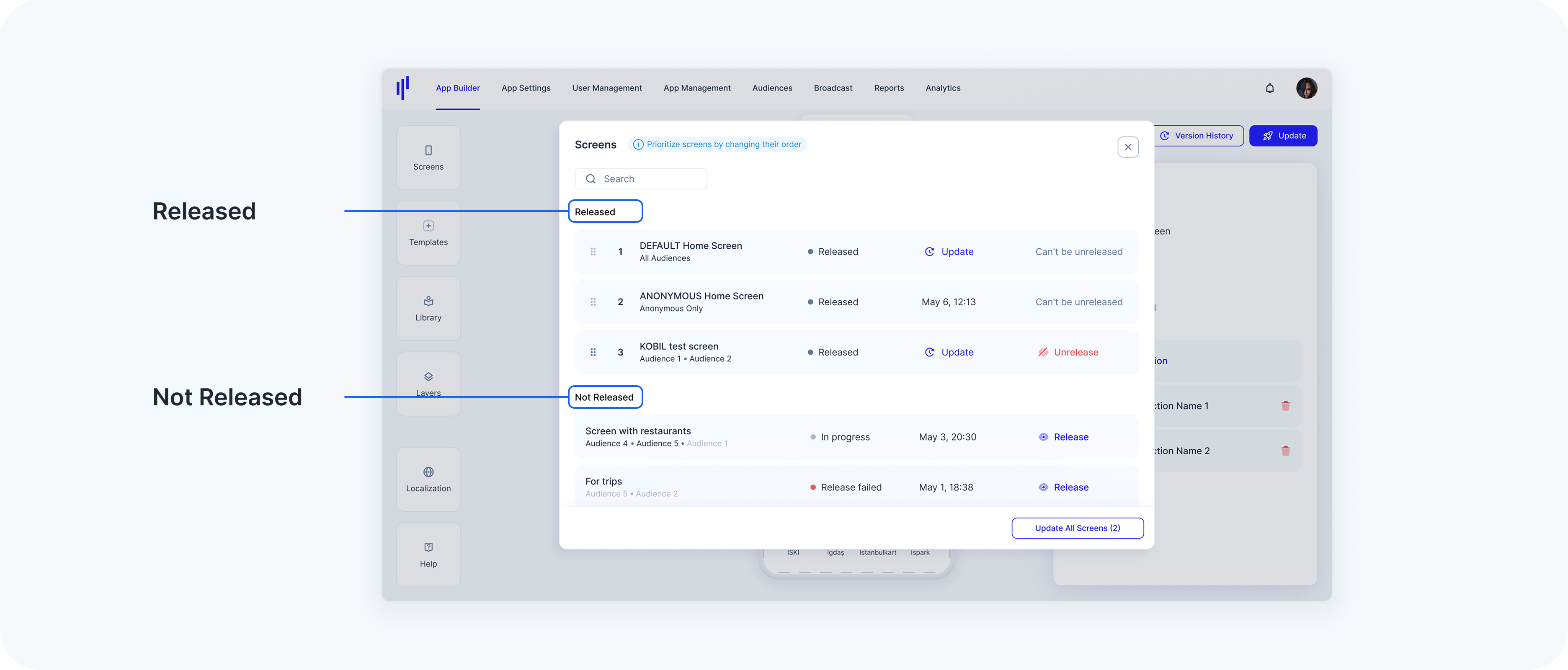
Clicking the Update button opens a modal listing all your Screens, categorized into two groups:
Released — These screens are already live and visible to users. Each item shows:
- The screen name
- Assigned audience(s)
- Status
Release date and time or Update button in case there is an update
Unrelease button
Important:
• Default screens (like DEFAULT and ANONYMOUS) can’t be
unreleased.
• Screens that can be updated will show an Update label.
Not Released — These screens haven’t been published yet. Each item shows:
- The screen name
- Assigned audience(s)
Status: In progress, Release failed, etc.
Option to Release it
How to Release (Update) Screens
You have two options:
- Update All Screens
If multiple screens need to be updated, a button labeled Update All Screens (X) appears at the bottom of the modal — where X indicates the number of screens ready for update. Clicking this will:
- Release all Update-ready screens
Trigger visual feedback (successfully updated or try again later)
- Update or Release a Single Screen
Click the Update or Release button next to any individual screen to publish it separately.
Unreleasing a Screen
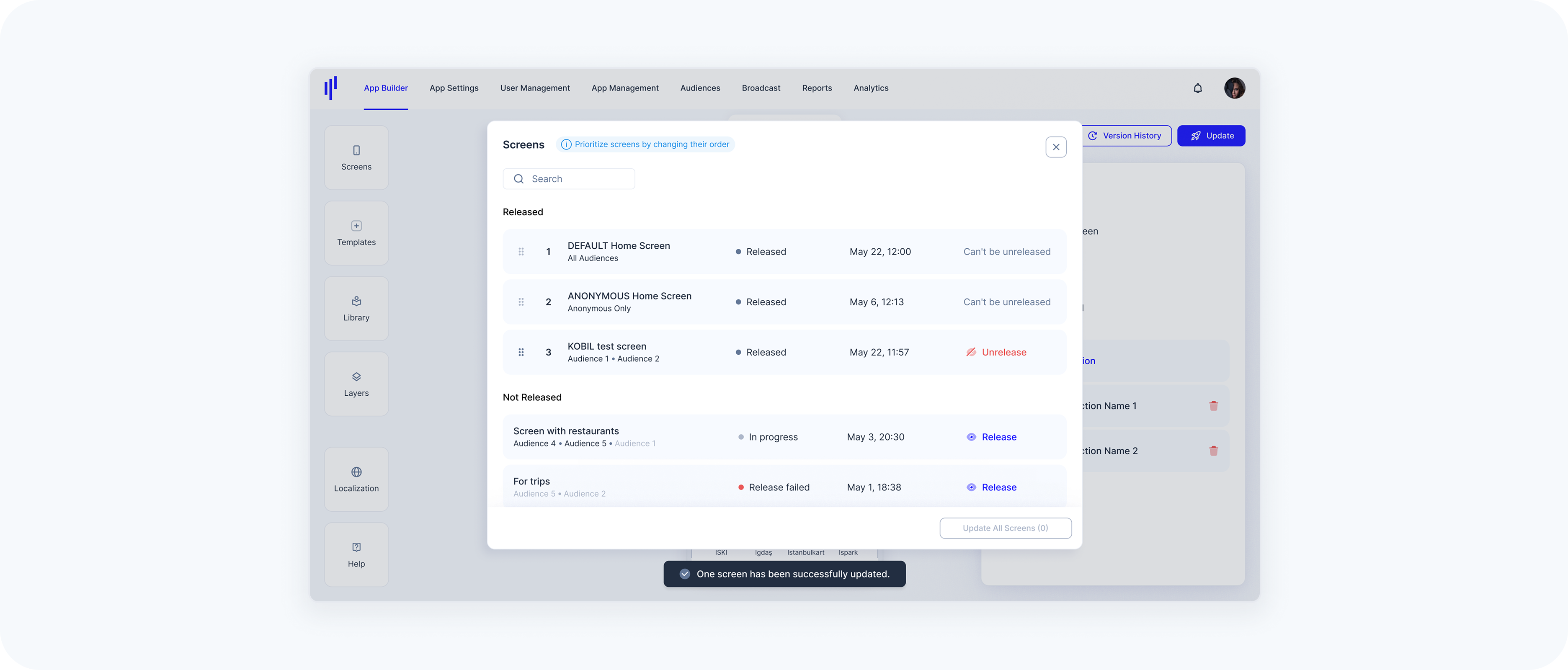
Some screens (except default/anonymous) can be unreleased if needed.
To do this:
Click the Unrelease button.
The screen will move to the Not Released section.
It will no longer be visible to its assigned audience(s) until you release it again.
Special Cases
Default screens cannot be dragged or reordered.
You can assign the same audience to multiple screens — and in such cases, only one screen will be shown to that audience. The system prioritizes whichever screen is higher in the list.
In the update modal, screens that share the same audience will have their audience labels shown in light gray.
This indicates that the audience is already assigned to another screen further up.
The top-most screen in the list takes priority and will be the one that’s shown to users in that audience group.
Empty State
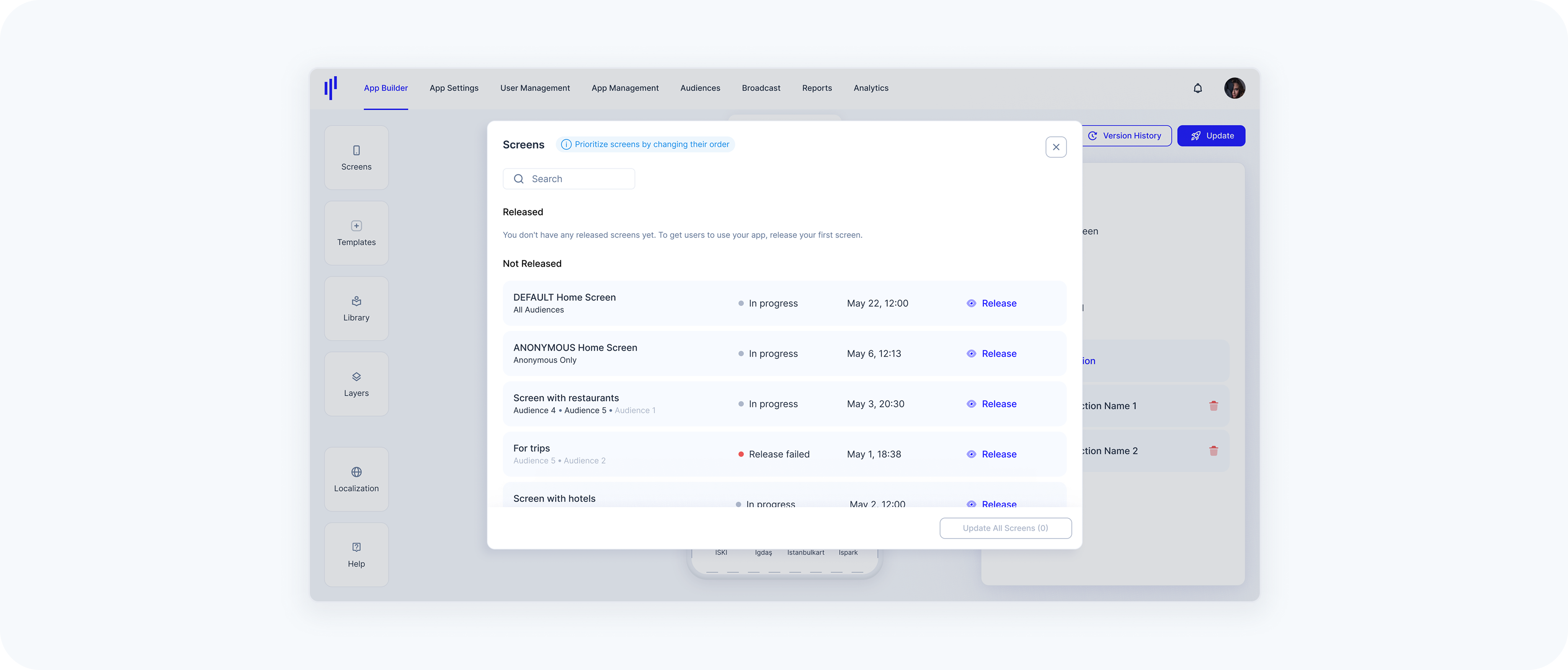
If no screens have been released yet, you’ll see a message: "You don’t have any released screens yet. To get users to use your app, release your first screen."