Getting Started
How to Access the App Builder
To get started with building your SuperApp Home Screen layout:
- Log in to your KOBIL Portal workspace.
- Click on App Builder from the top navigation bar.
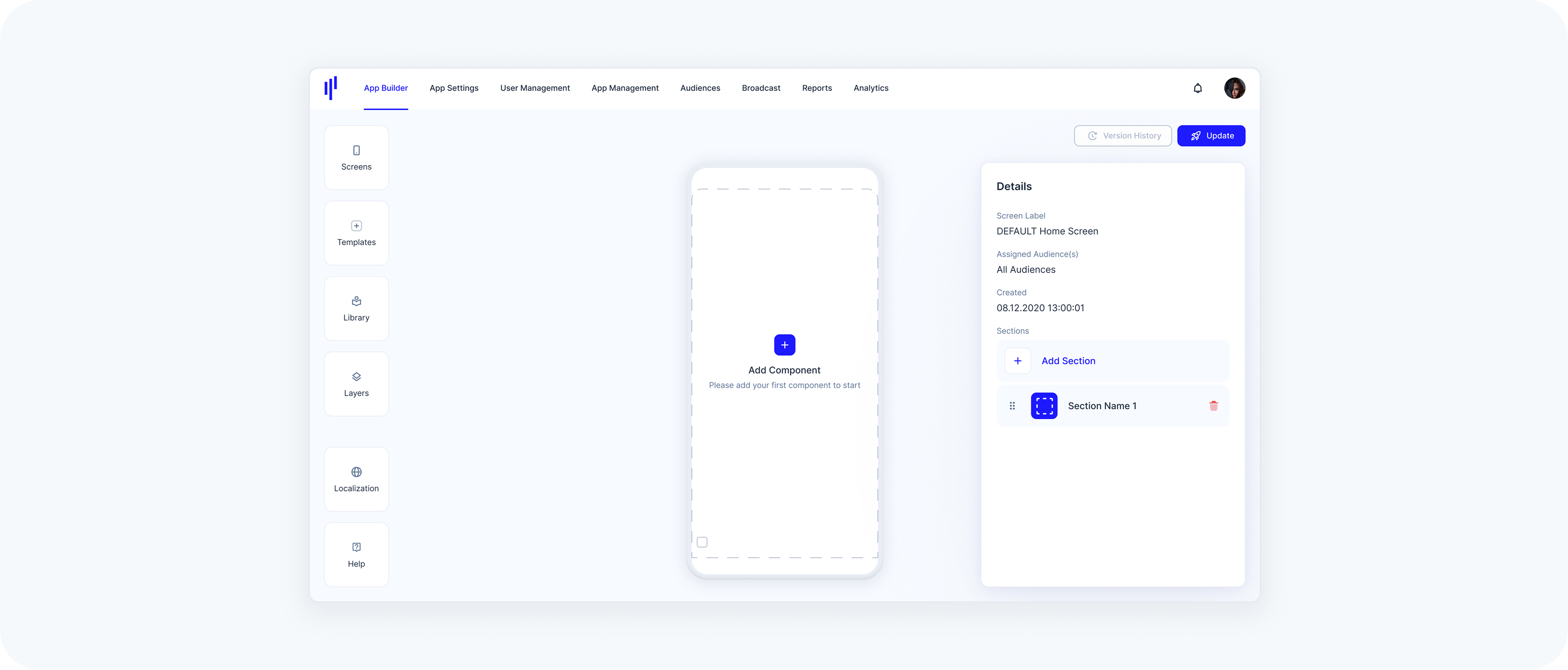
- The App Builder interface will open, showing the DEFAULT Home Screen by default.
Note: If you haven’t created any screens yet, this default screen will load automatically. It includes one empty section (pre-created), ready for you to add content.
UI Overview
The App Builder interface consists of three main areas:
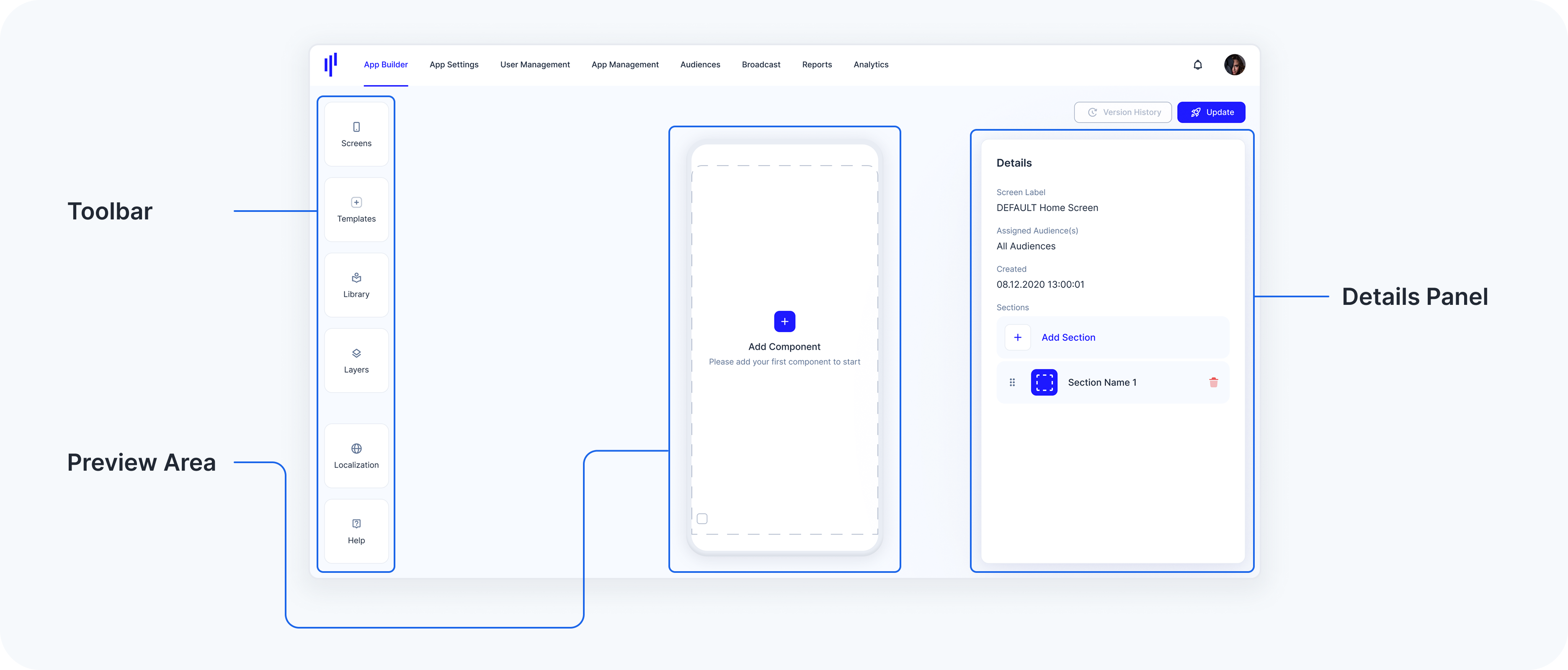
1. Toolbar (Left Panel)
This panel gives you access to the main tools you’ll use while building your screen:
Screens – Manage Home Screens: create, switch between, or remove them.
Templates – Drag-and-drop layout elements like sections, titles, tabs, and components.
Library – Manage or create reusable services and components.
Layers – View and manage all elements in a clear, collapsible structure. Allows you to rearrange content, rename items, and delete or edit specific parts more efficiently — especially useful on crowded screens.
- Help – Opens helpful documentation or support links.
2. Preview Area (Center Panel)
This area shows a live preview of the selected Home Screen in a mobile layout.
- The DEFAULT Home Screen is selected by default.
Although the preview looks empty at first glance, a section (e.g., “Section Name 1”) has already been created.
- You’ll see the message:
- “Add Component – Please add your first component to start.”
This message appears because the section doesn’t yet contain any components — but you’re ready to start by simply clicking Add Component.
Note: If your Library doesn’t contain any services yet, you won’t be able to fill your components. In that case, start by creating a service in the Library panel first, then return here to add it to the screen.
3. Details Panel (Right Panel)
The Details Panel updates dynamically to show configuration options based on what you select in the preview area or the Layers panel.
If nothing is selected, it displays the general Home Screen details, such as the screen name, assigned audience, creation date, and the list of sections.
If an element is selected (like a section, tab, or component), the panel switches to show specific settings for that element.
This flexible panel ensures you’re always seeing only the relevant options for your current task — no need to navigate through separate menus or tabs.