Version History
The Version History feature allows you to view, restore, name, and delete previous states of your Screen. It's especially helpful for undoing unwanted changes or reviewing past edits.
Where to Find It
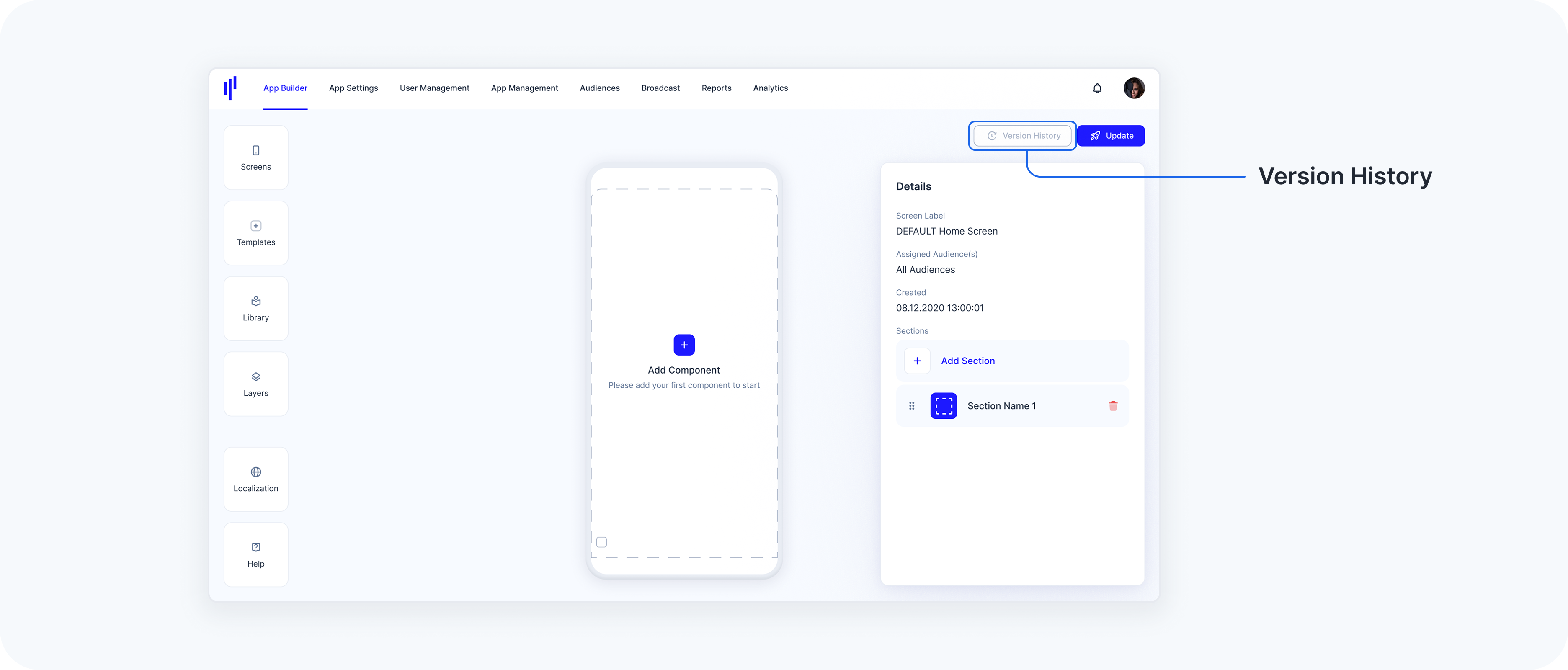
You’ll find the Version History button in the top-right corner of the App Builder UI, next to the Update button.
The button is disabled on a newly created Screen and only becomes active after the first component is added. Once active, it remains enabled — even if all content is later deleted.
Note: Version History is specific to the screen you're currently working on. Each screen has its own independent history. This means restoring a version only affects the selected screen — not other screens in the App Builder.
Opening the Version History
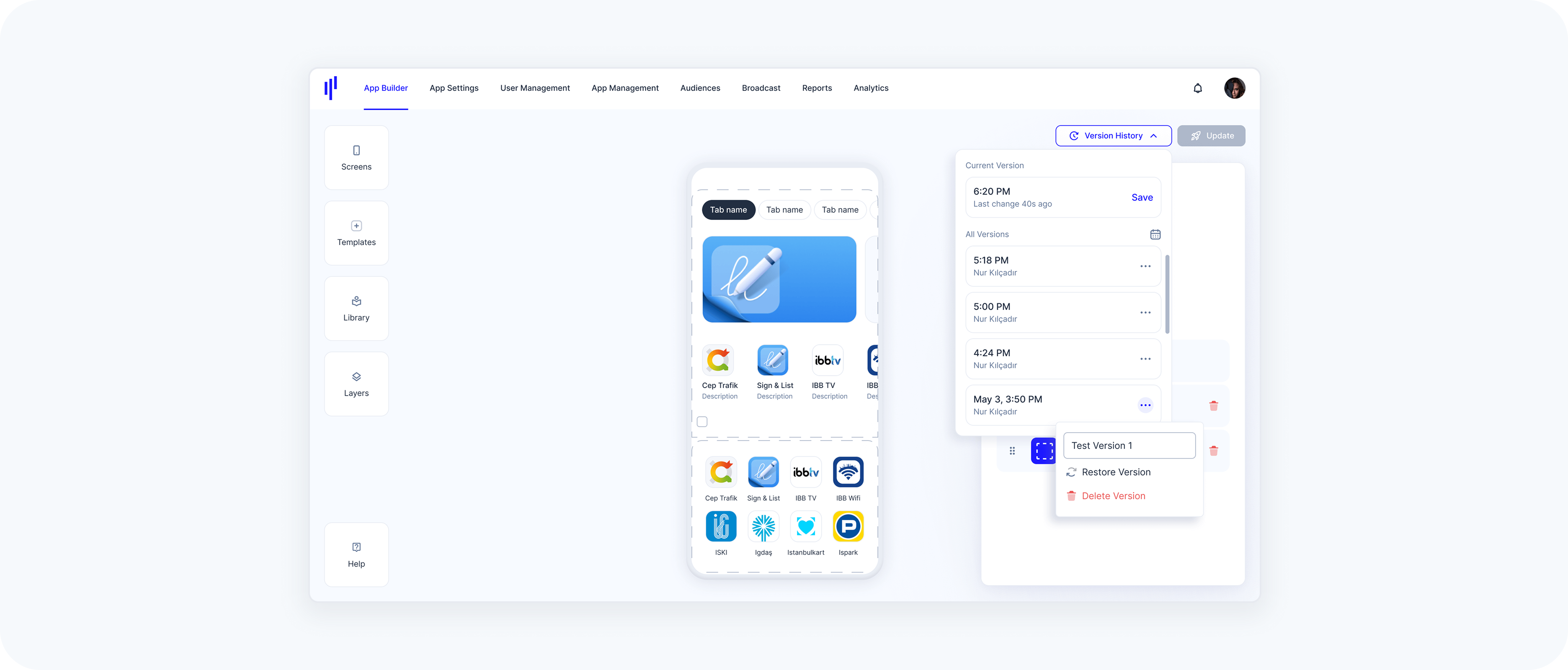
Click the Version History button to open a dropdown that shows:
The Current Version (with time and a Save button if unsaved)
A list of All Previous Versions, showing:
- Timestamp or date
- Editor name
- More options via the 3-dot menu (…)
- For versions from that day, the time is shown (e.g. 6:20 PM).
- For earlier versions, the date is shown (e.g. May 3, 3:50 PM).
Viewing a Previous Version
When you open Version History, you can browse through a list of previously saved versions for the selected screen. Clicking any version updates the preview to reflect how the screen looked at that time — letting you compare layouts, content, or structure changes.
Click on any previous version to preview it. You’ll see a bar at the bottom: “Viewing May 3, 3:50 PM”.
If a version hasn’t been manually named, we automatically assign a timestamp like “May 3, 3:50 PM” as its label — making it easier to track when the version was saved.
The Update button is disabled while in View Mode. To exit, either:
- Click the caret icon ^ in the Version History button
- Click anywhere outside the dropdown
Note: You're in view-only mode while looking at a previous version. You won’t be able to make edits or changes unless you restore that version.
Restoring a Version
Once you've previewed a previous version and want to bring it back, you can restore it by clicking the Restore button.
What happens when you restore:
- The selected version becomes the active screen state.
A new version is automatically created — the previous (current) version is not lost.
- The screen is fully editable again.
The restored version will show up in the Version History list.
Steps
- Click the 3-dot menu (…) on a version
- Select Restore Version
- Confirm the action in the dialog box
When you restore a version, the Save button is shown but disabled until a change is made. You must edit something to activate the Save button again.
Note: This is helpful when you want to undo recent changes, recover accidentally deleted content, or return to a previous layout. You’re not overwriting your work — just adding another point in your version timeline.
Naming a Version
To name a version:
- Click the 3-dot menu (…) on a version
- Select "Name this version"
- Enter a label (e.g. Test Version 1) — Named versions appear with the custom label instead of a timestamp.
Deleting a Version
To delete a version:
- Click the 3-dot menu (…) on a version
- Select Delete Version
- Confirm via the dialog box — Deleted versions are permanently removed, but your current state remains unaffected.