Screens
This is where users start assembling the app layout. Home Screens define what users see when they launch your SuperApp. All content inside the Home tab — banners, news, lists, packs, sliders, and more — is structured using components from the App Builder.
Each app starts with two pre-configured screens:
Default Home Screen
Visible to all logged-in users. This screen is automatically assigned to the All Audiences group and cannot be deleted.ANONYMOUS Home Screen
Displayed to users who are not registered or logged in. Assigned to the “Anonymous Only” audience.
You can create additional Home Screens to target specific audiences as needed.
Understanding Screens
There are three types of Home Screens you can work with:
- Default Screen – For all logged-in users, auto-assigned to all audiences.
- Anonymous Screen – For users not registered or not logged in.
Audience-specific Screens – Create these to tailor experiences for user groups such as region, subscription level, or behavior.
Creating a New Screen
To create a custom Home Screen:
- Open the Screens panel.
- Click the Create New Home Screen button.
- A new screen will instantly appear in the list.
- A default screen name will be automatically assigned (e.g., “Home Screen 3”).
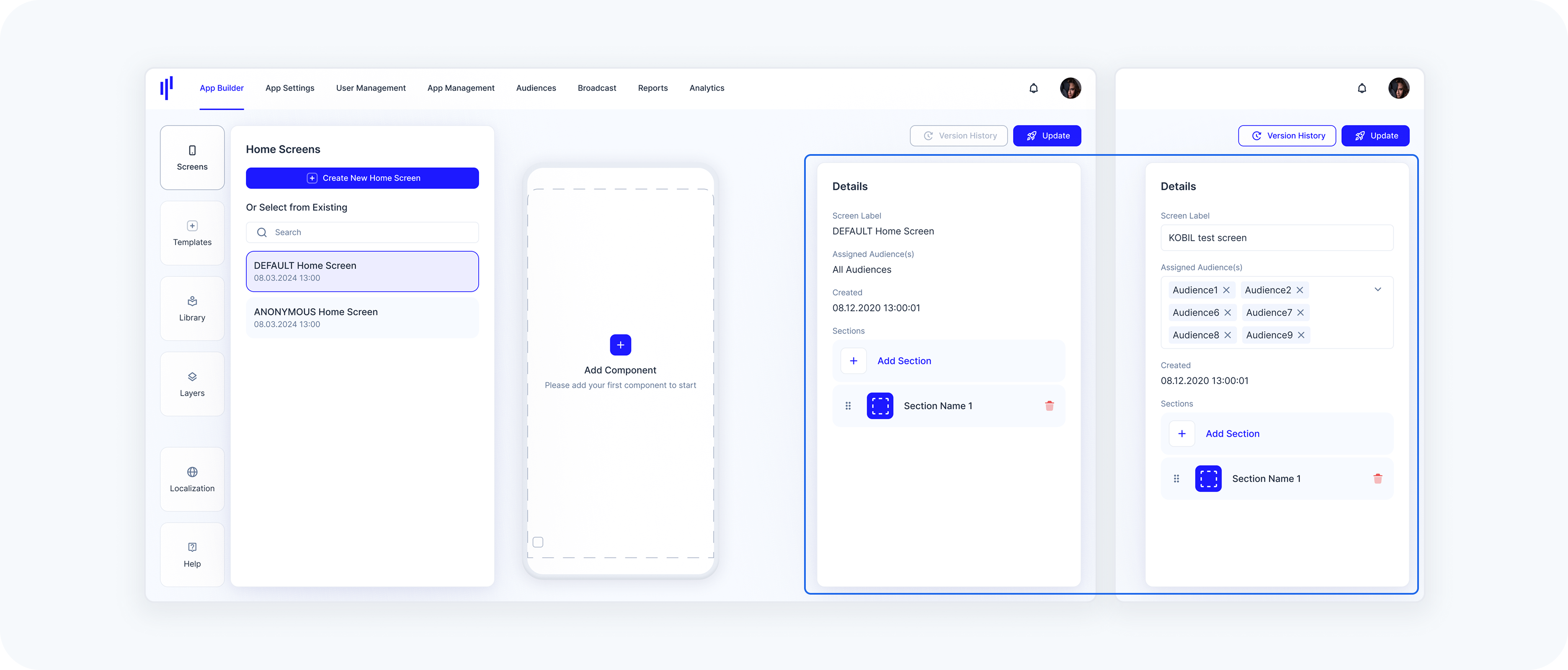
- You can update the Screen Label anytime in the Details panel on the right.
- To make the screen usable, assign at least one audience using the dropdownunder Assigned Audience(s).
If you try to update the screen without assigning any audiences, an error message will appear. Screens without assigned audiences cannot be released.
Screen Details Panel
When a screen is selected, the Details panel on the right shows key metadata:
Screen Label: Name used internally to identify the screen.
For Default Home Screen and Anonymous Home Screen, the screen label is read-only and cannot be edited.Assigned Audience(s): List of user groups this screen is shown to.
Default and Anonymous Home Screens have pre-configured audiences and cannot be changed.- Created: Timestamp showing when the screen was created.
Sections: Sections are where you drop components. You can add multiple sections per screen for layout structure.
Screen Actions Menu
Duplicate a Home Screen:
Click the 3-dot menu beside a screen and select Duplicate. A copy will be created and listed separately. It won’t be connected to the original screen — updates made to one will not affect the other.
Delete a Home Screen:
You can remove any custom screen by choosing Delete from the same 3-dot menu. A confirmation modal will appear, since deletion is permanent and affects all users assigned to that screen.